JSON.parse() Error Messages Explained: How to Find the Exact Problem
An explanation of JSON.parse() Error Messages and helps to identify exactly what the problem is.
One of the most widely used formats to store and transfer data among applications is JSON. It is used by JavaScript developers to interact with the APIs, to read configuration files, to process form submissions and to handle structured information. But, even a little error in a JSON string will result in ‘JSON.parse()’ failing.
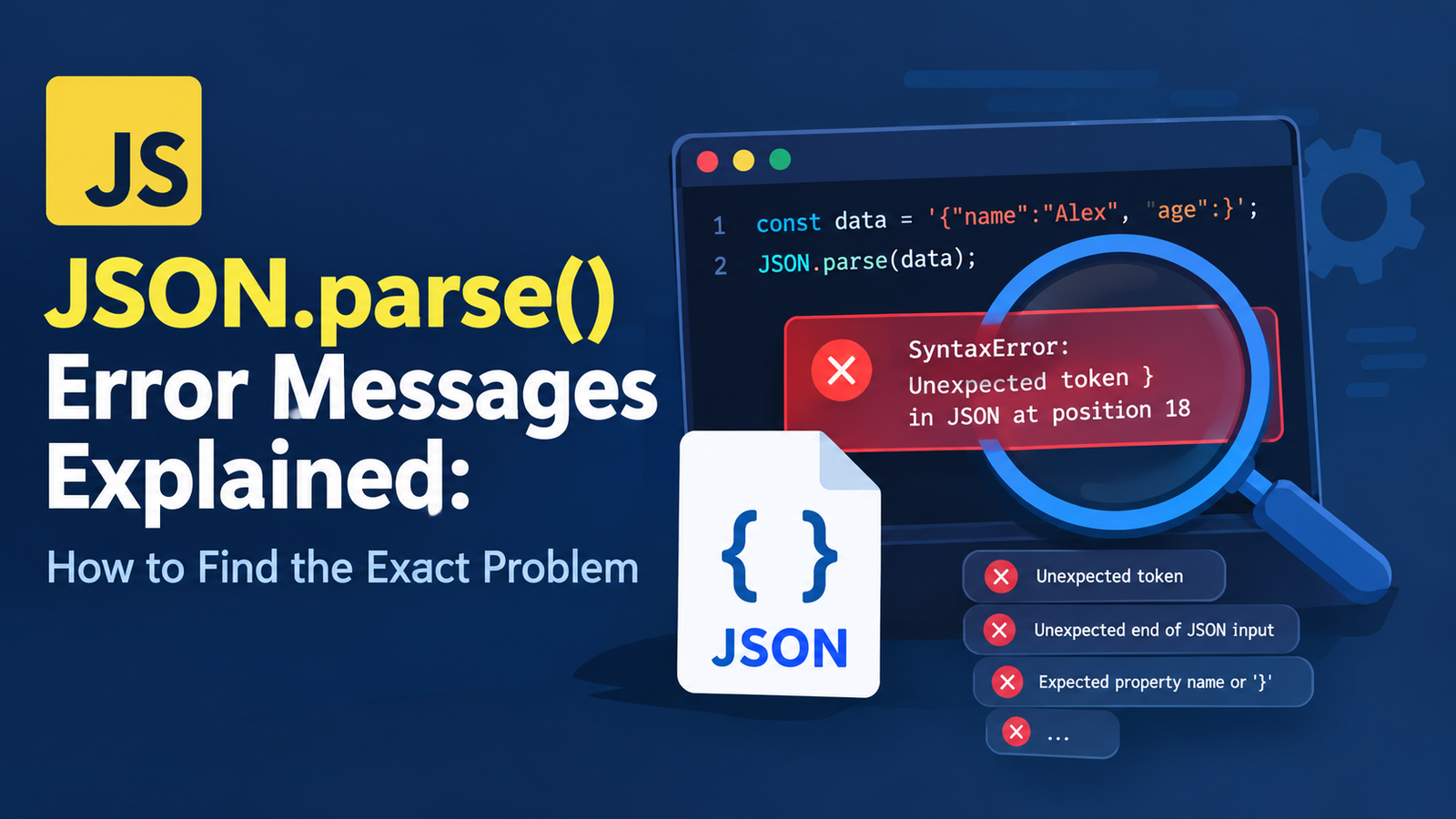
Unhelpfully this means parsing errors in your json are not always evident. Messages can include such things as: Unexpected token, Unexpected end of JSON input, or Expected property name or ‘}’. These messages state that the provided text is not valid JSON as per the specification expected by JavaScript, but identifying the specific issue may require some time if you don’t know where to start.
Fortunately you don’t have to guess. If you know the common error messages of JSON.parse(), and know where your software is messing up, and can examine your input source, you should be able to locate and resolve the problem quickly.
In this guide, we will examine how to understand the errors generated in a JSON parsing call and how to find the wrong characters, troubleshoot common errors, and write more robust JavaScript applications to gracefully handle receiving incorrect JSON.
What is JSON.parse() in javascript?
JSON.parse() is a native JavaScript function that will take a valid JSON string and transform it into a JavaScript value.
This value can be an object, string, number, boolean or null.
For example:
const jsonString = '{"name":"Alex","age":28}';

const data = JSON.parse(jsonString);

console.log(data.name); // Alex
console.log(data.age);  // 28
The input should be in accordance to the rules in json. However, if the string is not valid, then JSON.parse() does not return the value you expect, but instead throws a SyntaxError.
Consider this example:
const jsonString = '{"name":"Alex",}';

const data = JSON.parse(jsonString);
The last property in this JSON has a trailing comma. JavaScript won’t create that object but instead, throw a parsing error.
Knowing what this behavior is means that you will be the first step toward diagnosing JSON correctly.
So, why do JSON.parse() errors occur?
The most common error of JSON.parse() is due to non-JSON compliant input.
Common causes include:
- Missing or extra commas.
- Single quotes instead of double quotes.
- Unquoted property names.
- Lack of ending brackets or braces.
- Invalid escape sequences.
- Additional data outside of the JSON block.
- Empty string returns and partial API returns.
- Plain text or HTML provided to
JSON.parse(). - Unicode escape sequences that are not using the correct format.
For instance, you could define an object in JavaScript as follows:
const user = {
  name: 'Alex',
  age: 28
};
This is JavaScript object literal syntax, though, and is not valid JSON text. If you want to use JSON, the property names and all string values must be wrapped in double quotes.
The equivalent, valid, JSON is:
{
  "name": "Alex",
  "age": 28
}
Many errors in parsing might be easier to recognize when you understand the difference between JavaScript objects and JSON strings.
Firstly, to understand the “Unexpected Token” Error in context.
The most frequently occurring error when it comes to parsingJSON is the “unexpected token” error.
It indicates that the parser saw a character or some input which could not be handled at this location in the JSON document.
For example:
const jsonString = '{"name": "Alex", "age": }';

JSON.parse(jsonString);
The value for property age has not been set. Closing brace occurs at an unexpected location.
The actual error message may refer to an “unexpected token” or may say “parsing syntax error” with a line number indicating where it failed.
Unexpected Token Error – How to Fix it.
First, look at the input in the area around the reported location.
Check whether:
- There is a lack of value in a property.
- Comma is misplaced.
- Close quote with string is missing.
- A property name does not have double-quotes.
- The input is not in HTML or some other unsupported format.
First premiered here is an upgraded version:
const jsonString = '{"name": "Alex", "age": 28}';

const data = JSON.parse(jsonString);

console.log(data);
Important: The exact wording of the error message will vary depending on the JavaScript engine and runtime version used. Don’t just take one error message at face value. Also check the original JSON text.
2. JSON “Unexpected End of JSON Input” Exception Understanding
An unexpected end error typically indicates that the parser encountered an end value in the input stream before reading all the necessary elements in the value.
For example:
const jsonString = '{"name": "Alex"';

JSON.parse(jsonString);
Could not find the closing object brace.
This is another example of an incomplete array:
const jsonString = '[10, 20, 30';

JSON.parse(jsonString);
There is a missing square bracket.
Common causes
This is a common error that may happen when:
- The JSON object or array is not complete.
- A string is not terminated before its closing quotation mark.
- Truncated API response.
- A file is empty.
- An empty response body is returned from a request.
- Program to generate JSON text, but stops short of completion.
How to fix it
First of all, test if the input is empty:
const jsonString = "";

if (jsonString.trim() === "") {
  console.log("The JSON input is empty.");
} else {
  const data = JSON.parse(jsonString);
  console.log(data);
}
Before parsing, this example checks for the empty string. However it won’t correct incomplete JSON, so check the source of the input file or response and ensure you received the complete response.
Here are some examples of valid JSON:
{
  "name": "Alex",
  "age": 28
}
Make sure that if the input is dynamic, that the code that generates the input also contains all necessary closing characters.
Errors about Property Names: 3.
In JSON all properties must be wrapped within double-quotes.
This results in the following input being improper:
const jsonString = "{name: 'Alex'}";

JSON.parse(jsonString);
This has two syntax issues:
- The first problem is that the name of the property, name, is not delimited with double quotes.
- the string value ‘Alex’ is surrounded by single quotes.
A valid version of the JSON is:
const jsonString = '{"name": "Alex"}';

const data = JSON.parse(jsonString);

console.log(data.name);
Some engines may give an error message; “Expecting property name or ‘}'”, others may have other words.
How to identify this problem
Search at the end of an object with properties, after an open symbol `{.
A valid JSON property is in the form:
{
  "propertyName": "value"
}
Property names need to be strings inside of double quotes. Quoted property names (in the same way quoted strings are) and literal strings are not JSON.
Trailing Comma Errors – 4.
Trailing comma: a comma at the end of an object or array.
For example:
const jsonString = '{"name": "Alex", "age": 28,}';

JSON.parse(jsonString);
The comma (‘,’) appearing after the number ’28’ is not allowed as another property is expected to follow.
Arrays also have trailing commas as issue:
const jsonString = '["apple", "banana", "orange",]';

JSON.parse(jsonString);
Correct JSON syntax
Cross out the last comma in both cases:
const user = '{"name": "Alex", "age": 28}';

const fruits = '["apple", "banana", "orange"]';

console.log(JSON.parse(user));
console.log(JSON.parse(fruits));
Note: Commons 1,2,3 are similar in some JavaScript object literals and arrays, but commas at the end of JSON text are not allowed. In case you are creating JSON data programatically use JSON.stringify() instead of manually building strings.
5. Comprehending Invalid String Errors and Escape Errors
JSON strings should be double-quoted. Some special characters in strings need also to be escaped properly.
This JSON is invalid, for instance:
const jsonString = '{"message": "He said "hello""}';

JSON.parse(jsonString);
The JSON string is not correctly closed: “hello”.
It’s right JSON is:
const jsonString = '{"message": "He said \\"hello\\""}';

const data = JSON.parse(jsonString);

console.log(data.message);
// He said "hello"
JSON string has internal double quotes preceded by the backslash.
Common escape sequences in JSON data:
| Character | JSON representation |
|---|---|
| Double quote | \" |
| Backslash | \\ |
| Newline | \n |
| Tab | \t |
| Carriage return | \r |
| Backspace | \b |
| Form feed | \f |
| Unicode escape | \u0041 |
For example:
const jsonString = '{"message": "Hello\\nWorld"}';

const data = JSON.parse(jsonString);

console.log(data.message);
The string to be parsed has a chr(10) linefeed character between Hello and World.
How to deal with bad backslashes?
Consider this example:
const jsonString = '{"path": "C:\\newfolder\\file.txt"}';This JavaScript source emits all those backslash sequences in JSON text. There is a sequence that is recognized as a newline (that is, \n).
To include literal path separators correctly, have to escape backslashes at JSON level:
const jsonString =
  '{"path": "C:\\\\newfolder\\\\file.txt"}';

const data = JSON.parse(jsonString);

console.log(data.path);
// C:\newfolder\file.txt
Once you have a javaScript object you can avoid having to escape each of these values:
const user = {
  path: "C:\\newfolder\\file.txt"
};

const jsonString = JSON.stringify(user);

console.log(JSON.parse(jsonString).path);
Generally this is safer than concatenating strings to build JSON text.
6. Learning About Characters before or after JSON
At times, the JSON string is valid but there is more content at the beginning or end of the string.
For example:
const jsonString = 'Result: {"name": "Alex"}';

JSON.parse(jsonString);
An object must be preceded by a valid JSON value and the parser will not tolerate any whitespace before it except for permitted whitespace, i.e.: (not allowed) ”’Result: {…} (allowed) {…} (allowed) {…}”’
In the same way, this input is not valid:
const jsonString = '{"name": "Alex"} Done';

JSON.parse(jsonString);
If there is an additional word that follows the other closing brace, the whole input is not valid.
Correcting additional text mistakes
Check whether the input source is adding:
- Debugging messages.
- API status descriptions.
- Markdown code fences.
- HTML comments.
- Values that are multiple JSON records combined.
- Logging the output prior to the actual answer.
When expecting an API to return JSON, look at the raw response body not assuming that all responses are going to be JSON.
For example:
const response = await fetch("/api/user");

const text = await response.text();

console.log(text);
This is useful, to know what the server returned.
If error page or other text is in the response it will need to be resolved at the source NOT cut out arbitrarily.
8. ‘That’ variable is not defined
One frequent error is attempting to take apart an HTML response as JSON.
For example:
const responseText = "<html><body>Page not found</body></html>";

JSON.parse(responseText);
It doesn’t work from HTML because HTML is not JSON.
This tends to occur when:
- One of the API end points is wrong.
- A 404 Error page is returned by the server.
- Authentication has expired.
- When an exception occurs on the server, an HTML error page is displayed.
- Error document returned from Proxy or Hosting Provider.
3 Step Guide to Diagnosing an HTML Response
Using the Fetch API, check the HTTP response status and the response content type:
async function loadUser() {
  const response = await fetch("/api/user");

  console.log("Status:", response.status);
  console.log(
    "Content-Type:",
    response.headers.get("content-type")
  );

  const text = await response.text();

  console.log("Response body:", text);
}

loadUser();
The following example is to be used for debugging purposes. Body reads as text and will not be possible to re-read the same body from the initial response.
When the endpoint is supposed to return JSON, check the URL, the response from the server, authentication and how it handles errors.
exact location of a JSON parsing error can be seen in the following way.
Not all, but some JavaScript engines will bear a position (or line number or column number) in parsing errors.
For instance, if an error shows that the problem occurred near position 15, it means that the unexpected character was found around position 15.
The position can be used to track down the problem, but the exact format of the message depends on the type of browser, version of Node.js or other JavaScript environment being used.
Print the original JSON string.Step 1: print the original json string.
console.log(jsonString);Sometimes the quickest method of spotting missing punctuation or inappropriate material is to inspect the original text.
Step 2: Display the character near the error
The error message may contain a position; you can check around that position:
function showErrorContext(text, position) {
  const start = Math.max(0, position - 10);
  const end = Math.min(text.length, position + 11);

  console.log(text.slice(start, end));
}

const jsonString = '{"name": "Alex", "age": }';

showErrorContext(jsonString, 24);
Prints a snippet of the input near the given location.
This particular position is a sample. When known, use the actual reported position of your runtime.
Set the new line to search for the individual characters.
Often this is the presence of some invisible character, some unexpected line break or some typographical quotation mark.
The character codes can be examined by:
function inspectCharacters(text) {
  for (let i = 0; i < text.length; i++) {
    console.log(i, JSON.stringify(text[i]), text.charCodeAt(i));
  }
}

inspectCharacters('{"name": "Alex"}');
This is helpful if the JSON appears okay, but still fails to parse.
At this stage, a warning will be issued if the surrounding words are incorrect.
Find the error location in the program by first searching for the closest opening brace, opening bracket, quotation mark, and comma.
The parser may tell you where the problem occurred, but not where the actual error occurred. An unclosed string for example, can trigger an error later in the document.
Therefore, rather than modifying just the reported character, check the other characters and what was previously entered as the property or value.
10. Try…catch to Avoid 982 Errors in JSON.parse()
When JSON is obtained via API call, file, local storage or user entry, a possibility to the failure of the JSON being valid can arise.
try/catch Statement enables to deal with errors that may occur while parsing without crashing the surrounding operation.
const jsonString = '{"name": "Alex", "age": }';

try {
  const data = JSON.parse(jsonString);

  console.log("Parsed data:", data);
} catch (error) {
  console.error("Unable to parse JSON:", error.message);
}
If the parsing fails, the catch block is passed the error for reporting and/or falling back appropriately.
Write a function to parse a JSON that can be used repeatedly.
If the parser handles parsing at many locations, a helper function can help to record the error in a uniform manner.
function safeJsonParse(jsonString) {
  try {
    return {
      success: true,
      data: JSON.parse(jsonString)
    };
  } catch (error) {
    return {
      success: false,
      error: error.message
    };
  }
}

const result = safeJsonParse('{"name": "Alex"}');

if (result.success) {
  console.log(result.data);
} else {
  console.error(result.error);
}
This function returns an object that shows if parsing succeeded or not.
Also, if parsing fails, any correct JSON value, like null, false, and 0, will not be confused with a parsing failure, as a successful outcome is indicated by the “success” property.
Important: On a catch, no attempt to fix the fact that it is an invalid JSON. It allows your app to gracefully deal with failure.
11. Tips for Debugging JSON.parse() Errors in API responses
Often the content coming from an API response is a source for parsing issues, since it varies based on the server, request, authentication and network conditions.
Consider this example:
async function getUser() {
  const response = await fetch("/api/user");

  const data = await response.json();

  console.log(data);
}
A handy way to consume a JSON result, however can reject if the body of the JSON response is not valid.
A more diagnosis version is:
async function getUser() {
  const response = await fetch("/api/user");

  const contentType =
    response.headers.get("content-type") || "";

  if (!response.ok) {
    const body = await response.text();

    throw new Error(
      `Request failed with status ${response.status}: ${body}`
    );
  }

  if (!contentType.includes("application/json")) {
    throw new Error(
      `Expected JSON but received: ${contentType || "unknown"}`
    );
  }

  return response.json();
}
An example of checking the HTTP status and content type before parsing the body.
However, there are some APIs that return a different, but still valid, JSON media type and some servers that return JSON without the specific application/json media type header. Customize the check to fit the behavior of the API in question.
Browser developer tools are also helpful for debugging. To view what exactly the server sent, open up the Network tab, select the request and look at the Response section.
11. Errors with common JSON.parse() and how to solve them.
The table below lists some common problems and their quick fixes.
| scenario | Explanation | Answer | |
|---|---|---|---|
| Escape certain characters | See below for examples | Use double quotes | |
| Unquoted key | {name:"Alex"} | Write "name" | |
| Trailing comma | {"age":28,} | Remove the final comma | |
| Missing value | {"age":} | Provide a proper value | |
| ‘Close the object’ | Missing identifier | {"name":"Alex} | ‘}’ to close the object. |
| Invalid escape | {"path":"C:\q"} | Escape backslashes correctly | |
| Extra text | OK {"age":28} | Return only the JSON value | |
| HTML response | < html>...< / html> | Fix the endpoint or response | |
| Empty input | "" | do not assume the input is not empty |
The following examples illustrate typical reasons, not guaranteed error messages. The syntax error may be reported in various ways, depending on the run time.
12. Effective Strategies to Avoid JSON Parsing Errors
While it is good to be able to understand the error messages, knowing what to do to avoid having them in the first place can save valuable debugging time.
Create JSON with help of JSON.stringify()
Don’t build strings of JSON from JavaScript data if you already have it.
Instead of this:
const name = 'Alex';

const jsonString = '{"name":"' + name + '"}';
Use this:
const name = 'Alex';

const jsonString = JSON.stringify({ name });

console.log(jsonString);
JSON.stringify() works like expected on special characters in string values which includes quotation marks.
Verify data at suitable boundary
Well-formed JSON does not mean that the JSON data possesses the structure that your application requires.
For example:
const data = JSON.parse('{"age":"twenty"}');

console.log(data.age);
This does not error, but the age value is not a number.
Validates attributes, data types, and application-specific rules after parsing.
Don’t try to fix all of the invalid strings
Quotation marks or unexpected characters may be removed or the data might be adjusted by removing commas, which may alter the intended data.
If it is important data, check for where the invalid JSON is and change it at the source. Test your repair strategy with known cases if your application has to be gracious with bad data at the source.
Continue remain debugging information beneficial and secure
Logging can be very helpful during development to see the raw response, which could provide a quick idea about the problem at hand.
Do not use production environment for logging of private API responses, passwords, authentication tokens or other information that could be sensitive. Capture sufficient diagnostic data to be able to examine the failure without compromise of confidential information.
Frequently Asked Questions
What is error JSON.parse()?
An error in a call to JSON.parse() indicates that that the given string is not a valid JSON value. Input can be syntactically incorrect, contain missing or unrelated characters, include additional text, or be a partial answer.
How can I get the exact character at fault that is causing the JSON error?
Look for a position, line or column in the error message. Look at the original JSON at that point: see if there are any nearby quotation marks, commas, braces, or brackets. Note: reported position may not be the location where the issue was first encountered but is the position where the parser detected the issue.
3. What is the reason for the error: “Unexpected end of JSON input”?
Typically, this means that the parser ran out of input while parsing a value. Some common causes include unmatched parentheses, incomplete strings, partial answers, and empty in/out fields.
4. Why this JSON.parse() working doesn’t match my JSON that looks fine?
Additional characters might be supplied such as invisible characters, incorrect escape characters, smart quotation marks, additional text and an HTML response. Print the original string and compare its characters looking for differences that aren’t so easy to see.
16. What are some legal uses of single quotes in JSON?
No – Use double quotes for JSON strings and property names. Single quotes are not valid JSON string delimiters, but are allowed in some JavaScript expressions.
6. How to gracefully deal with failures in JSON.parse()?
Wrap parsing operation in a try catch block. Report error or return appropriate message or return value of controlled failure. Not only skim over the issue of invalid input, but dig into why it is an invalid input in the first place.
7. Is there an extension to JSON.parse() to do some structure validation on my data?
No. Checks the syntax and parses a JSON text into a JavaScript value. It doesn’t guarantee that expected properties are present or values are compatible with your app. Do more validation after parsing.
8. When to use JSON.parse() or JSON.stringify()?
Convert a valid JSON text to a JavaScript value, using JSON.parse(). Convert a JavaScript value to a JSON text string using JSON.stringify().Create a JSON text string from a JavaScript value, using JSON.stringify(). They do completely different things and they can even be utilized together.
9- Can an API be expected to give back a response that causes a JSON parsing error?
Yes. The body returned by an API can be empty, an HTML error page, plain text or an incomplete JSON. Examine the response status, content type, and raw response body to find out what went wrong.
10. can unsafe/invalid JSON be made safe again by automatic insertion and deletion of commas and quotes?
Not always. Automatic changes may change the meaning of the data or a different valid document may have been produced than the one desired. Just to repair the original data source or adopt a well-defined repair process.
Key Takeaways
- JSON.parse() converts a string of valid JSON text to a JavaScript value.
- An Unexpected token’ error normally refers to incorrect syntax or to an unknown token.
- In most cases an
Unexpected end of JSON inputerror will be caused by incomplete or empty input. - JSON specifies that all property names and string values must be double quoted.
- Parsing may fail, for example because of trailing commas, missing values, and incorrect escape sequences.
- The error positions are helpful clues but the original error may be at a previous position on the text.
- Check API results and see if the server returns JSON, HTML or Plain Text.
- Use try…catch to prevent failure of parsing to be mistaken for successful results.
- Implement JSON stringification, or use JSON.stringify(), rather than stringing together by hand.
- Sanitise the structure of the parsed data, in addition to its underlying JSON syntax.
Once you’ve learned how to understand the error messages of the JSON.parse() function in JavaScript, you’ll understand that debugging is much easier. However, when you know how to review the input, spot any suspicious characters, and also understand what is not the expected API response versus incorrect JSON, you can be able to solve many of the parsing issues without having to resort to “guessing”.