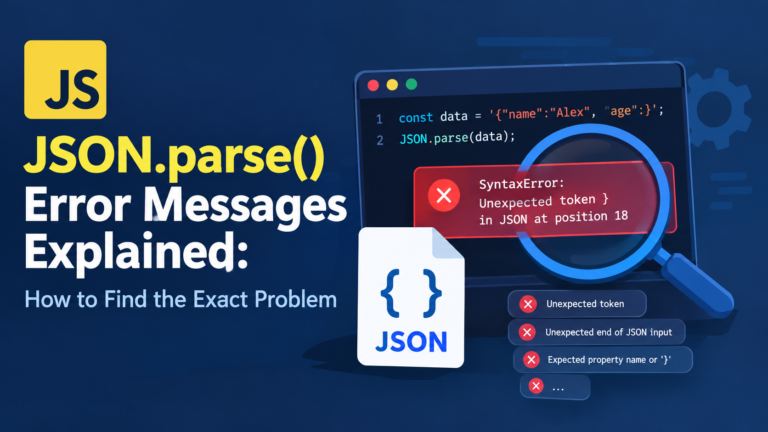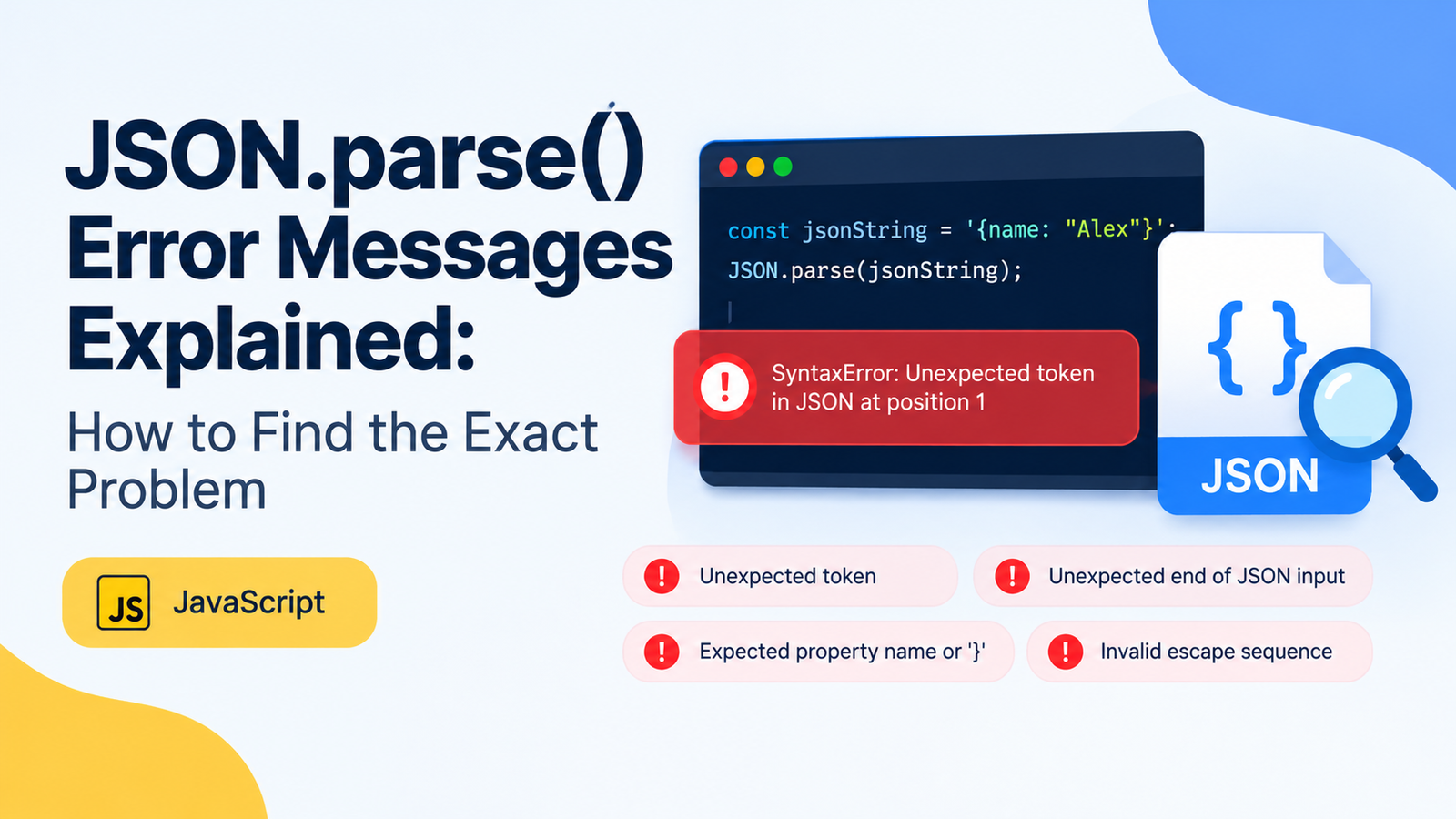
How to read the Error Messages of JSON.parse() and understand where they actually lie.
JSON is one of the most prevalent formats that you’ll find working with JavaScript. It is the exchange of structured information, communicate with APIs, store configuration information and exchange information between applications. But, any error in a json string will make the JSON.parse() function to fail!. JSON.parse() error messages
The annoyance is that parsing errors in JSON don’t always manifest themselves immediately. You may have a message like “Unexpected token” or “Unexpected end of JSON input” or “Expected property name or ‘}’”. Each message contains a clue, but figuring out where or what the message means is not so easy.
The positive aspect is you don’t need to assume your method via these errors. JavaScript offers valuable error data and the systematic process of error determination can be used to narrow down this kind of problem much more quickly.
In this guide, you will learn to understand the string of common error messages from JSON.parse(), locate problem characters and fix the malformed JSON, plus avoid similar issues in future projects. These techniques will help you correctly and safely handle JSON-encoded data, whether it comes from API responses, configuration files or user-submitted data.
What Is JSON.parse() in JavaScript?
The javascript function JSON.parse() is a built-in function that takes a well-formed JSON string as argument and returns a javascript value.
For example:
const jsonString = '{"name":"Alex","age":25}';

const result = JSON.parse(jsonString);

console.log(result.name);
console.log(result.age);
Output:
Alex
25
The method reads the string and stores the string’s content as a JavaScript object.
It supports some additional types, including arrays, strings, numbers, booleans, and null.
JSON.parse('[1, 2, 3]');
JSON.parse('"Hello World"');
JSON.parse('42');
JSON.parse('true');
JSON.parse('null');
Every example consists of valid JSON, which can be successfully parsed.
But, there are strict rules of syntax for JSON. If you use invalid quotation marks, trailing commas, missed values or an unexpected character in the input, then JSON.parse throws a “SyntaxError.
For example:
const jsonString = "{name: 'Alex'}";

JSON.parse(jsonString);
This code is not working because JSON values and names must be both property names and strings, quoted with double quotes.
The elements are:
const jsonString = '{"name": "Alex"}';

JSON.parse(jsonString);
Once you know these basic rules, you can begin to see “parsing errors” with a lot more clarity.
Why is it that JSON.parse() throws?
A JSON parsing error can happen when a string provided does not conform to the JSON syntax specification.
Not all of the features of JavaScript object literals are supported by JSON.
Here are some of the most common parsing failure reasons:
- Single quotes are used for the property names instead of double quotatj.
- Unescaped “double quotes” in string values.
- Objects or arrays contain trailing commas.
- …missing (close) brace/bracket.
- There is a point of value after a colon.
- The input contains comments.
- The media type of the response is not JSON.
- Blank or incomplete JSON string.
- The value to provide is surrounded by characters that are not part of the JSON format.
For instance, this is legal JavaScript object syntax, but illegal JSON:
const data = {
  name: 'Alex',
  age: 25,
};
Single quote strings and trailing commas in object literals are both supported in JavaScript. Both can’t be used inside the corresponding JSON text.
Valid JSON version is:
{
  "name": "Alex",
  "age": 25
}
The error message generally gives a clue as to what kind of syntax error caused it when JSON.parse() fails. The wording will vary depending on the JavaScript engine, which means that the same bad input can generate different messages from different browsers/runtimes.
To understand what the Unexpected Token Error is.
One of the most common errors is:
SyntaxError: Unexpected token ...The message can be a specific character like n, o, < or quotation marks. It also might be a place or location.
This error is typically because the parser has found a character that is not allowed in this position in the JSON text.
Single Quotes example:
Here is some invalid JSON:
const jsonString = "{'name': 'Alex'}";

JSON.parse(jsonString);
The property name must start with a single quote, but JSON doesn’t allow it.
In JavaScript, you can get an unexpected token error, or an non-expected property, depending on the error behavior of your JavaScript engine.
Corrected:
const jsonString = '{"name": "Alex"}';

JSON.parse(jsonString);
Example: Unexpected HTML
A frequent culprit is when an application is designed to accept a certain expected set of characters, namely, Json, and it gets an HTML page.
const response = '<html><body>Page not found</body></html>';

JSON.parse(response);
The first character of the input is a <, which is not a valid JSON value.
This is frequently the case where:
An endpoint is not from the API.
- A 404 error page is served.
- Authentication has expired.
- The proxy/server returns an HTML error page.
Unless you receive API data instead of a login page in the response.
Turn to the actual answer BEFORE parsing to investigate the problem.
const response = await fetch('/api/data');

const text = await response.text();

console.log(text);
This will allow you to view the actual response from the server.
If the answer is prefixed with HTML you will not be able to fix this problem by just altering the JSON syntax in your Javascript. There is a request or server response that requires investigation.
The Unexpected End of JSON Input Error is resolved.
Other messages often include:
SyntaxError: Unexpected end of JSON inputThis usually indicates that the parser had been presented with the end of the input stream before it received a complete JSON value.
The input may be missing, incomplete, or have missing closing characters.
Bad example: Incomplete JSON Object
const jsonString = '{"name": "Alex"';

JSON.parse(jsonString);
Unmatched ‘}’ in curly braces.
The Corrected version is:
const jsonString = '{"name": "Alex"}';

JSON.parse(jsonString);
Example: Empty String
const jsonString = '';

JSON.parse(jsonString);
No JSON value can be an empty (“”) string, which will cause parsing to error.
If your application is such that there can be empty response, then deal with it separately.
function parseJSONSafely(input) {
  if (typeof input !== 'string' || input.trim() === '') {
    throw new Error('Expected a non-empty JSON string');
  }

  return JSON.parse(input);
}
It is an example that will give you a more explicit error in case of empty input or improperly secured input types, but will also let normal JSON parsing exceptions bubble up to the top if you put in a bad string.
Example: Incomplete Array
const jsonString = '[10, 20, 30';

JSON.parse(jsonString);
There is no closing bracket at the end of the array.
Correct version:
const jsonString = '[10, 20, 30]';

JSON.parse(jsonString);
In the case of a surprise end error, look for missing input, a premature response (may be continuing background processes) and for all objects and input arrays to be closed.
3. Apprenticing the Expected Property Name Errors.
The names of properties in a JSON object should be double quoted strings.
For instance, an error might be:
SyntaxError: Expected property name or '}'This message is typically used when the parser was expecting a valid object property and it wasn’t found.
Let’s look at some invalid JSON:
const jsonString = '{name: "Alex"}';

JSON.parse(jsonString);
The property name (name) is not enclosed in double quote.
Correct version:
const jsonString = '{"name": "Alex"}';

JSON.parse(jsonString);
Property names may be quoted even if they appear to be a plain old JavaScript property name.
Another wrong example is:
const jsonString = "{'name': 'Alex'}";Single quotes are used around the property name, and around the string value.
Enclose both:
const jsonString = '{"name": "Alex"}';If an error refers to a property name, check the characters just after the opening brace and/or the last comma.
4. Getting value missing after colon
Properties in a JSON object are separated from the value by a colon.
For example:
{
  "name": "Alex",
  "age": 25
}
Value is missing from the field, and a parsing error results.
Invalid example:
const jsonString = '{"name": }';

JSON.parse(jsonString);
The parser has come to the end of a brace when there is a value missing.
The corrected JSON could be something like:
const jsonString = '{"name": null}';

JSON.parse(jsonString);
Only use ‘null’ where it accurately models the data. In case the value is expected to be a string, number, array, or object, then provide that value.
Other examples that are invalid are:
{"price":}
{"active":}
{"items":}
It is not possible to skip a value in JSON after a colon.
Keep in mind that undefined cannot be used as a valid JSON value.
Invalid:
JSON.parse('{"name": undefined}');Valid:
JSON.parse('{"name": null}');This distinction is important for dynamically created or JavaScript object converted data.
21. Correct Formatting of trailing commas in JSON
Another common source of parsing exceptions with JSON is because of the presence of a trailing comma.
Trailing commas are allowed in some JavaScript object and array literals, but they are not allowed in JSON.
Invalid JSON:
const jsonString = '{"name": "Alex", "age": 25,}';

JSON.parse(jsonString);
There is a closing-comma (”,’)’ character immediately after the number ’25’, but no property follows.
Correct version:
const jsonString = '{"name": "Alex", "age": 25}';

JSON.parse(jsonString);
Commas are also not allowed at the end of the array.
JSON.parse('[1, 2, 3,]');Correct version:
JSON.parse('[1, 2, 3]');If a parser error shows in the vicinity of a closing brace or bracket, see if a comma is present before the error message.
6. Replacing Unclosed Literal in JSON Strings
Within the values that are strings, quotation marks need to be escaped.
Adding the string is illegal, for example:
const jsonString = '{"message": "He said "hello"."}';

JSON.parse(jsonString);
When the parser sees the quotation mark preceding the word “hello”, it identifies it as the end of the string. The rest of the characters aren’t valid JSON anymore.
Embedded quotation marks to use a backslash:
const jsonString = '{"message": "He said \\"hello\\"."}';

const result = JSON.parse(jsonString);

console.log(result.message);
Output:
He said "hello".It may be tricky to understand that the number of backslashes is confusing, owing to the fact that the JSON text is itself contained within a JavaScript string.
JavaScript string literal uses \\" in this case, this will be inserted into the JSON text as \", enabling the use of a quotation mark inside the JSON string value.
When you are creating, editing or consuming nested strings, remember the difference between the JavaScript string literal and the corresponding JSON text it will generate.
7. Know how to understand invalid escape sequences.
There are a number of escape characters that can be used within strings in JSON.
These include:
\"for a double quotation mark.\\for a backslash.\/for a forward slash.- backspace (escaped with ‘-b-‘).
\ffor a form feed.\nfor a newline.\rfor a carriage return.\tfor a tab.\uXXXXto denote a Unicode code unit specified in 4 hexadecimal digits.
Other escape sequences are not recognized as being JSON.
For example:
const jsonString = '{"path": "C:\newfolder"}';

JSON.parse(jsonString);
This is an illustration of a typical Windows path problem. The “\n” is treated as an escape for the newline character and the parsed path does not end up with the desired backslash followed by the letter “n”.
Other paths might fail to be parsable when an invalid escape like \U occurs.
Safe json representation of a windows-path is:
const jsonString = '{"path": "C:\\\\Users\\\\Alex"}';

const result = JSON.parse(jsonString);

console.log(result.path);
Output:
C:\Users\AlexThis will depend on the context; writing a JSON string from a JavaScript source string requires two backslashes, whereas writing a string that contains a JSON string requires one backslash.
If the content of a key is a JavaScript value, use JSON.stringify() to obtain the JSON version of it rather than manually escaping characters.
const data = {
  path: 'C:\\Users\\Alex'
};

const jsonString = JSON.stringify(data);

console.log(jsonString);
This helps minimize the risk of an invalid escape sequence being introduced.
This section describes how to determine the exact location of an error.
A number of JavaScript engines provide a character position or line and column number in JSE error messages.
An error might contain, for example, the words:
Unexpected token at position 15Specific format depends on engine & runtime. Not all errors contain a position.
Use a position to inspect other characters around.
const jsonString = '{"name": "Alex", age: 25}';

try {
  JSON.parse(jsonString);
} catch (error) {
  console.error(error.message);
}
A known position inspection of a character can be done with:
const position = 18;

console.log(jsonString.slice(
  Math.max(0, position - 10),
  position + 10
));
Change the location indicated in your error message to position.
Prints a small part of the input around that location.
Be aware that positions are usually the character indices of the input string with the indexing convention varying. If the error contains a line and column, search that location instead of assuming that the message is a zero indexed position.
Before parsing the JSON string, print it for the user.
The simplest debugging method would be to print out the initial string.
console.log('JSON input:', jsonString);

const result = JSON.parse(jsonString);
It is useful when the JSON data is received from a dynamically-generated string, form, file or API.
What you’re receiving might differ from what you wanted.
For complex strings, examine the raw string and the neighbouring characters rather than paying heed to the error message.
10. REST API Testing – How to Arrange Data into Tables.
If an HTTP call fails to parse the resulting data into JSON, it’s not necessarily a parsers error. The server may be serving an error page, empty response, or aren’t formatting the response correctly.
Consider this example:
async function getData() {
  const response = await fetch('/api/data');

  const data = await response.json();

  console.log(data);
}
response.json() expects the response body to be JSON. Parsing may fail if the body is not a valid JSON.
A preferable way to investigate is to check the status of the response and body:
async function getData() {
  const response = await fetch('/api/data');

  const text = await response.text();

  console.log('Status:', response.status);
  console.log('Response:', text);

  if (!response.ok) {
    throw new Error(`HTTP error: ${response.status}`);
  }

  if (!text.trim()) {
    throw new Error('The server returned an empty response');
  }

  return JSON.parse(text);
}
This code is used to differentiate whether an empty response or a JSON parsing error occurred or a true HTTP error was encountered when talking to the device.
However, it is not an absolute way to check the response is a valid JSON. If the body is malformed, then the final JSON.parse() may throw a SyntaxError.
Also, please be aware that the body of the response is consumed by calling response.text(). Never attempt to read the same body again later since it might not be available.
In the Content-Type Header you can identify the type of content in the message.
Alternatively, you can check the type of the response’s content:
console.log(response.headers.get('content-type'));A typical response to a JSON message has a content type of something similar to:
application/jsonLooking at the server response (text/html) might give you a hint that you’re getting an HTML page and not a JSON.
Headers do not necessarily indicate the format of the body, but they can be useful for diagnostic purposes.
10. Use JSON.stringify() to Avoid Manual JSON Errors
Producing JSON strings in a manual way is dangerous because the implementer has to do a lot of things right, including quotation marks, backslashes and special characters.
This can, for instance, go wrong with this approach:
const name = 'Alex "The Developer"';

const jsonString = '{"name": "' + name + '"}';

JSON.parse(jsonString);
The quotation marks are embedded which results in the outputted JSON being an invalid string.
You should instead make a JavaScript object and serialise that object:
const name = 'Alex "The Developer"';

const data = {
  name: name
};

const jsonString = JSON.stringify(data);

console.log(jsonString);

const result = JSON.parse(jsonString);

console.log(result.name);
Output:
{"name":"Alex \"The Developer\""}
Alex "The Developer"
The JSON.stringify() method generates a string representation of its argument, with syntax that is valid JSON, using a pre-defined strategy.
Can generally be safer than manually building JSON by stringing things together.
Keep in mind, that JSON.stringify() serializes a JS value to JSON text and JSON.parse() parses a JSON text to a JS value.
Handling Errors in JSON.parse() using try…catch
Use try…catch to cope with the failure to parse: If invalid JSON is a possibility, try the parsing and use try…catch to prevent failure to parse from unexpectedly interrupting the surrounding operation.
const jsonString = '{"name": "Alex",}';

try {
  const data = JSON.parse(jsonString);

  console.log(data);
} catch (error) {
  console.error('Unable to parse JSON:', error.message);
}
This example handles the parse error and displays its message.
You can also make a helper that can be reused:
function safeJSONParse(input) {
  try {
    return {
      success: true,
      data: JSON.parse(input),
      error: null
    };
  } catch (error) {
    return {
      success: false,
      data: null,
      error: error.message
    };
  }
}

const result = safeJSONParse('{"name": "Alex",}');

if (result.success) {
  console.log(result.data);
} else {
  console.error(result.error);
}
This pattern is explicit as the result of the parsing becomes obvious and the calling code can proceed to decide what to do next.
But don’t assume that the captured error represents a valid json! Catch blocks should provide meaningful error handling, logging, recovery or perhaps a feedback to the user.
In addition, make sure to take cautions while logging sensitive information. Production logs should not include personal or private information as it may be in API responses or user input.
13. A quick list for debugging problems with JSON.parse()
If you encounter an error of the type “JSON.parse(): argument must be a JSON string”, proceed as follows:
Print the original input.Print original input (step 1).
console.log(jsonString);Determine if the string has the data you would expect.
Step 3: Check for Zero FHV
if (!jsonString.trim()) {
  console.error('JSON input is empty');
}
This assumes that jsonString is in string format. If the input might be something else then validate the type before calling string methods.
Look for Quotation Marks.
Make sure property names and string values use double quotation marks in the JSON text.
Invalid:
{'name': 'Alex'}Valid:
{"name": "Alex"}Step 4: Examine Braces and Brackets
Complete all objects and all arrays.
{"name": "Alex"}[1, 2, 3]Remove leading, followed by trailing, commas.
Invalid:
{"name": "Alex",}Valid:
{"name": "Alex"}Look at the escape sequences; they are quite different in every line.
Check for stray quote, backslash, and unexpected line breaks.
Step 7: Check the Source
If the input is passed in from an API, check if the API is returning an OK status, it’s body, and the content type of the response.
Step 8 – apply the Error Position.
If there is a position in the error message, check the characters around the position. Keep in mind that the reported location may refer to the point in which parsing failed and not necessarily the position of the original character which caused failure.
Step 9: Validate the JSON
Get a trusted JSON validator /-json editor and use it to spot problems in JSON syntax. Prevent the pasting of confidential information in an on-line validator.
STEP 10: Prevent the Problem.
Use the JSON.stringify() method to output JSON, if at all possible.
By working through this checklist, you can help get from a vague parsing issue down to a concrete, testable cause.
Frequently Asked Questions
In JavaScript, what is the function of JSON.parse()?
JSON.parse() parses a valid JSON response string and returns a JavaScript value, which can include an object, array, string, number, boolean, or null. The method throws a SyntaxError if the input is not a syntactically correct JSON.
2. What is the meaning of ‘Unexpected token’ inJSON.parse()?
An unexpected token error typically indicates that the parser encountered a character that it didn’t expect at this location in the JSON text. Common examples are properties that have been quoted in a single quote, trailing commas, unexpected HTML, and unescaped quotation marks.
3. What is Unexpected end of JSON input?
Normally this indicates that the parser was interrupted in the middle of reading a valid JSON value. Look out for blank or incomplete objects/arrays or responses that were cut off.
4. How to get to the specific character that is causing a JSON error?
Log first the original JSON string. If an error message has a position, check a few characters before and after the one specified. The position format varies by JavaScript engine and sometimes the reported position and the discovered position will not be the one that caused the mistake.
5. Is JSON.parse() able to compile a JavaScript object directly?
The No. ‘JSON.parse()’ accepts JSON format, which is usually provided as a string. Numerous JavaScript objects are available; it’s better to use them than to do any parsing.
const data = { name: 'Alex' };

console.log(data.name);
6. What is the issue with using JSON.parse() to get data from my API?
The result can be blank, invalid or HTML as opposed to JSON. Before beginning to inspect the actual JSON syntax, look at the HTTP status, response body, and content type.
7. Are there single-quotes in JSON?
No. Quotation marks around JSON strings, names of properties should be double. Single quotes are valid in some places in JavaScript strings and object-literals, but NOT in JSON strings.
8. How to to avoid errors with JSON.parse()?
Cater and use JSON.stringify to convert JavaScript values to JSON, validate input from external sources, look at API responses, and always provide try catch parsing. These practices will minimize unnecessary mistakes and simplify the troubleshooting for unexpected issues.
9) Can JSON.parse() errors be ignored?
In most cases, no. The parsing errors may result in the loss of data, or the application may show incorrect data or may even continue to run without the required data. Deliberately handle the error and only use a fallback where suitable for the given application.
10. Does JSON.parse() automatically rectify invalid JSON?
Note: JSON.parse is not a JSON repair tool, it just parses well formed JSON. It needs to be fixed before being parsed and has to be a carefully designed repair process; otherwise, its input is not well-formed. Meaning of the original data may be altered by automatic repairs.
Key Takeaways
The JSON.parse() method is used to create a JavaScript value from a valid JSON text.
An unexpected token error typically means that there is an invalid character or statement in a specific location.
The response Unexpected end of JSON input usually indicates that the input data is empty or incomplete.
Both, property names and string values in a JSON need to be enclosed in double-quotes.
Parsing failures may include trailing commas, missing values and bad escape sequences.
Empty responses, HTML error pages and malformed server data can cause API parsing errors.
Information about the original input and the reported error position can sometimes help to speed up debugging.
Use of JSON.stringify() makes things more secure than manually made JSON strings.
- Catch parsing exceptions and give good error details.
- Accept and confirm external data, do not leave out sensitive data in logging for debugging.
When you view each error message as a clue to understanding the problem, it is much easier to see the cause of any JSON parsing problem. Check the actual input and find out where its error in syntax or unexpected reply comes from and fix it. You can solve most of the issues you have while using JSON.parse with a consistent debugging process – without having to do guess work.