How to match file path, URL and Literal Symbols with Regex
Comparing file paths, urls and words (or literals) to regular expressions (regex) can be confusing and particularly confusing when special characters are included in the pattern. Some characters like /, +, ., ?, (, ), [, ] and \ have special meanings which will vary by regular expression syntax and by programming language.
For instance, one may use the dot in a regular expression, which typically matches “anything”, and a dot in a file name, which matches itself. For the same reason, a ‘?’ in a URL can stand for the part of the address after it, while in a regex it is a pattern that can alter the behavior of the pattern.
Correctly matching these values will help write reliable patterns, disallow undesirable matches, and process user input more securely.
Through this guide, you’ll know how to match the path of files or urls or the literal symbols using regex, how to escape special symbols and how to avoid common pitfalls in JavaScript, python and many other programming environments.
So what is the matching of file paths, urls and literal symbols to regex about?
Regular expressions are patterns which are used for searching, matching, validation, and extraction of texts. They are used in computer programming to test for file names, URLs, valves, characters within strings, etc.
The matching of file path, URLs and literal symbols involves defining a regular expression pattern for a specific character or symbols you wish to identify.
Consider these examples:
- File path:
C:\Users\Alex\Documents\report.pdf - URL:
https://example.com/products?id=10 - Literal symbol:
price+tax - File name:
report.final.txt - URL path:
/blog/regex-guide
In each example, there is characters with potentially special regexp meanings. They could match something other than you intended if used incorrectly.
So the regex report.final does not necessarily mean only report.final. In many regex modes the dot matches everything except a line terminator (newline)
You must escape the dot if it needs to match itself:
report\.finalThis is the same pattern that is used for the literal period between report and final.
It’s actually quite easy and has only a few basic rules: regex metacharacters are used when their special behavior is wanted, and are escaped when their literal characters are wanted.
Knowing Regex Special Characters
Before proceeding with matching the paths and urls of files it is best to understand what characters are special in regular expressions.
Examples of common regex metacharacters are:
| Character | Regular expression definition | ||
|---|---|---|---|
| ‘.’ | Matches nearly all individual characters, depending on the regex mode | ||
| “ | “Zero or more” – matches no repetitions or any number of repetitions | ||
| One or more repetitions (match 3 or more copies of a) | |||
| ? | Makes optional modifiers/quantifiers or alters the behavior of quantifier | ||
| ^ | Starts line/string | ||
$ | Beginning and end of a string / line | ||
( and ) | Define groups | ||
[ and ] | Define character classes | ||
{ and } | Define repetition counts | ||
| Represents OR | ` | ` | |
\ | In-front of a special regex sequence or escape |
Not all of these characters are always escapable in all positions or flavors of re. For instance, a hyphen is a special character inside many character classes, and a slash might need to be escaped in a programming language that uses the /.../ as a literal delimiter of a regex.
It will vary based on the type of regex engine and implementation of the pattern in your programming language.
How to match file path with Regex – How to write regular-expression pattern to match the file path
File paths may vary between different operating systems. Backslashes are frequently used with Windows, whereas forward slashes are frequently used with Linux and Mac computers.
For example:
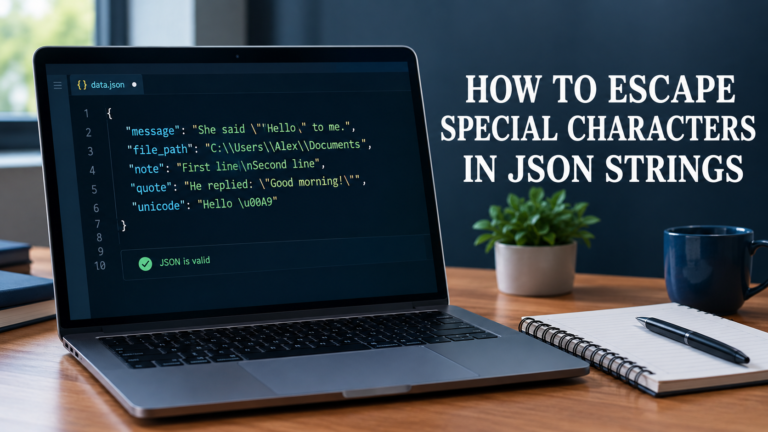
C:\Users\Alex\Documents\report.txt
/home/alex/documents/report.txt
The path separators, and other special characters that could be used in the path, need to be taken into account when writing a regex to match these paths.
Match Windows File Path;
The path separator for Windows is backslash (\). But backslash also constitutes escape sequences in regex.
You will usually need to escape backslashes when dealing with a literal backslash in the pattern:
\\This pattern will match one back-slash.
The following regex for instance matches a path starting with the C:\Users\ path:
C:\\Users\\It corresponds to text like:
C:\Users\Alex
C:\Users\Jordan
Does not match a path which uses forward slashes instead.
A JavaScript regex literal is such that:
const pattern = /C:\\Users\\/;
const path = "C:\\Users\\Alex\\Documents";

console.log(pattern.test(path)); // true
Also note that the escaped backslashes are needed in the JavaScript string. This is an interface with two layers of syntax—regex and string—that both have to be correct.
Match File Path (Linux or macOS)
Unix style file paths have directories separated by forward slashes:
/home/alex/documents/report.txtA forward slash is not special in the regex pattern in many regex implementations. But, when expressed as a JavaScript regex literal, forward slashes are used as delimiters and so the internal forward slash must be escaped.
For example:
const pattern = /\/home\/alex\/documents/;
const path = "/home/alex/documents/report.txt";

console.log(pattern.test(path)); // true
If you create the regex using the JavaScript RegExp constructor, you can use a string instead:
const pattern = new RegExp("/home/alex/documents");This prevents having to escape all the slashes as the delimiter of a regex-literal, since having to escape slashes in a JavaScript string itself, otherwise.
Matching File Extensions
File extensions may have an actual period (.) in them. The dot is the metacharacter of the regular expressions, to find the exact extension separator, it should be escaped.
For instance, to match pdf:
\.pdf$The pattern is looking for literally the .pdf to be present in the virtual string at the end of the string.
Example:
const pattern = /\.pdf$/;

console.log(pattern.test("report.pdf")); // true
console.log(pattern.test("reportXpdf")); // false
console.log(pattern.test("report.pdf.bak")); // false
The pattern can be used to examine the suffix or extension of the file name. Matching an extension, alone, however, does not mean that a file exists or that its contents are actually in the PDF format.
Matching File Names that contain multiple dots.
A file name could have multiple points, e.g.
report.final.txt
backup.2026.zip
image.profile.webp
In order to get the exact file name ‘report.final.txt’ use the escape characters for the periods:
report\.final\.txtTo match report with .txt, but the file name has to start with report, you might use:
^report.\.txt$In this case the dot could have any number of characters in between the report and the last .txt.
Use caution when dealing with broad, such as this. If you know the format, use more restrictive patterns as they can match more file names than you think.
Matching URL with Regex How to》
There are many components of a URL, such as scheme, hostname, port (optional), path, query string and fragment.
For example:
https://example.com/products?id=10detailsA URL can contain characters such as :, /, ., ?, =, &, and “. These are some of the metacharacters of a regular expression, some are characters in many regex engines.
The puzzle will be recognizing the structure of the URL and at the same time special regex syntax.
Matching an Exact URL
If you wish to match the exact URL:
https://example.comIn JavaScript, there is a potential regex literals:
const pattern = /^https:\/\/example\.com$/;

console.log(pattern.test("https://example.com")); // true
console.log(pattern.test("https://exampleXcom")); // false
The backslashes used like this have different functions:
\allows specifying a literal slash.- The symbol
\.will match the literal period, exactly. ^makes the match anchored (starts at beginning).- In common use, the $ is used to specify the end of the file.
Chevron is producing a pattern that matches a url string not a whole bunch of similar urls strings.
Comparing URLs nearly identical, except for the query parameters.
Query strings might begin with a “?”, followed by either a parameter or multiple parameters separated by the “&” character.
https://example.com/search?q=regex&page=2The ? is a metacharacter in regex. Escape any literal question mark:
\?The following JavaScript regex for example matches a URL that starts with the given search address and that includes a query parameter:
const pattern = /^https:\/\/example\.com\/search\?q=regex/;

console.log(
  pattern.test("https://example.com/search?q=regex&page=2")
); // true
This pattern explicitly is a prefix match, meaning that it does not require that the entire URL match after regex.
You may need to provide query parameters conditions and end-of-string conditions to match the entire URL.
Matching URL Paths
Path names in URL’s will often contain forward slashes and often include hyphens, underscores, numbers and periods.
For example:
https://example.com/blog/regex-guideTo match the path /blog/regex-guide you can use the following regex:
/blog/regex-guideWith a JavaScript regex literal, the slashes themselves need to be escaped:
const pattern = /\/blog\/regex-guide/;If the path is required to be at the end of the URL, then you can use:
/blog/regex-guide$The anchor will keep the rest of the line from showing up after the matching path – this will depend on what you’re matching (full URL or a substring).
Matching of “http” and “https” URLs
An optional s: may be used to match with urls using an optional HTTP or HTTPS.
^https?://Here, s? means that the letter s is optional.
This pattern finds the starting of either:
http://example.com
https://example.com
It only looks at the prefix of the scheme. It is not a validation for the hostname or path or full URL.
If you need to validate URL, it’s best to use a dedicated parser rather than trying to capture all valid URL formats with a single over-complex regular expression.
Match Literal Symbols using Regex.
Literal symbols are the characters to find in a string. These can be punctuation, mathematical symbols, or brackets or programming language characters.
The most common problem would be that a literal symbol can be of a special meaning within regex.
In this section, we will discuss how to match a literal ‘+’.
By default, the plus sign (+) indicates that the previous element will be repeated one or more times.
To output the real plus sign escape it:
\+For example:
const pattern = /price\+tax/;

console.log(pattern.test("price+tax")); // true
console.log(pattern.test("price-tax")); // false
This comes in handy if you want to match expressions, product labels or strings containing mathematical operators.
Matching Parentheses
Parentheses in regular expressions: Groups. To match literal “parentheses”, escape them:
\(example\)This pattern matches:
(example)Doesn’t use parentheses as grouping instructions.
Matching Square Brackets
Square brackets are used to usually indicate a character class. An example is that [abc] will match any single character from a, b, or c.
Literal square brackets must be escaped:
\[example\]This is the same as the text that was delimited in the brackets:
[example]It can be matched by any single sign.Can be matched by the asterisk sign alone.
An asterisk typically indicates that the previous character can be repeated 0 or more times.
To match a true asterisk, use:
\Below is the pattern that will match file.txt:
^file\\.txt$It is equated with the literal * and not the repetition operator.
Matches a Literal Dollar Sign
The dollar sign has normally at the end of a string/line set anchor effect. Match a literal dollar sign – escape it:
\$For example:
const pattern = /^\$\d+$/;

console.log(pattern.test("$100")); // true
console.log(pattern.test("100")); // false
In this case, the dollar sign is matched using the escape sequence \$ and the digits are matched using \d+ for one or more digits.
Matching a Literal Pipe Symbol
The pipe character (|) means OR in regex.
For example:
cat|dogis equal to either cat or dog.
In order to insert an actual pipe symbol, escape it:
\|This comes in handy when looking for words in text that also include command line syntax, configuration values, or Markdown table separators.
Learn how to escape special characters in a regular expression in JavaScript.
There are two major ways of creating regular expressions in JavaScript: by using regex literals and by using the RegExp constructor.
Both do accept reg-exps; however, escaping may not be identical since JS strings escape the backslashes before the reg-exp engine gets to them.
A Literal for a Regex.
The pattern for the regex expression is specified within forward slashes:
const pattern = /file\.txt/;In this case \. is used to match an actual period.
Regex literals are useful if the pattern is known at compile-time.
Builder of regular expression objects.
The RegExp constructor’s argument is a string of regex code:
const pattern = new RegExp("file\\.txt");\\. is in the string because the JavaScript string parser uses one backslash (for each literal backslash in the string). Then . is sent to the regex engine where it is respected as a dot.
This additional escape layer often raises questions.
Human Input That’s Dynamic
To search the user’s submission as a literal string, with no escaped regex metacharacters, you should escape the regex metacharacters instead of the submission.
User input like, for example:
report.finalWith the dot not escaped, it could accidentally be an exact match for reportXfinal when inserted in a pattern.
In modern JavaScript, RegExp.escape() exists in supported environments:
const userInput = "report.final";
const pattern = new RegExp(RegExp.escape(userInput));

console.log(pattern.test("report.final")); // true
console.log(pattern.test("reportXfinal")); // false
The RegExp.escape() function escapes the characters in a string so they can be used as literal parts of a pattern. When supporting older JavaScript environments remember to test and if needed use an alternative that performs as expected.
Note: Escape for user input is not the same as escape for HTML encoding, URL encoding, or for sanitize for input elsewhere.
Mapping file paths and symbols in Python.
In Python there is the module re that allows regular expressions to search, match and replace text.
Since regex patterns normally involve omnipresent backslashes in python string literals, raw strings can be handy when writing such patterns.
Using Raw Strings
For example:
import re

pattern = re.compile(r"\.pdf$")
print(bool(pattern.search("report.pdf")))   True
print(bool(pattern.search("report.txt")))   False
This is a raw string literal with the r prefix. It makes it easier to handle backslashes, although it does not deactivate regex escaping. Note that \. still represent a pattern of actual period in the regex engine.
Matching Windows Paths
To match a prefix of a directory name as used in Windows:
import re

pattern = re.compile(r"C:\\Users\\")
path = r"C:\Users\Alex\Documents"

print(bool(pattern.search(path)))   True
The path used in the raw string is easier to read, and the doubled backslashes in the regex pattern is for literal path separators.
Comparing Literal User Enter 100 Literal User Input to Literal User Enter 101.
In Python, there is a function re.escape(s) to escape characters in a string so that they match themselves:
import re

user_input = "report.final"
pattern = re.compile(re.escape(user_input))

print(bool(pattern.search("report.final")))    True
print(bool(pattern.search("reportXfinal")))    False
This useful when a user provides a value that should not be assumed to be a regular expression, such as a file name, a search term, etc.
The re.escape() method is for creating patterns. Should NOT be used as a general HTML-Scape, URL-Scape, replacement string-Scape.
Matching File Paths and URLs – Common Mistakes
Even a “fairly straightforward” regex pattern can give you unexpected results if escaping is done improperly.
The time it took to get away from the Dot…
Incorrect:
file.txtThis pattern can match fileXtxt due to the dot matching a character.
Correct:
file\.txtWhen it is necessary to use a period as a literal, use the escaped version.
Regex And String Backslashes
A pattern might be given to a programming language’s string parser (first) – before it goes into the regex engine.
For instance, JS could need:
const pattern = new RegExp("C:\\\\Users\\\\");Four backslashes are used for every backslash that will appear in the pattern you are creating. Some patterns may be easier to write in raw strings in Python, and regex literals in JavaScript.
If you’re not able to comprehend a pattern, how can you depart from a character in it?
In some cases, not all characters need to be escaped. Too much escaping can make patterns more difficult to understand, and even alter the pattern’s behavior.
Pay attention to characters which are special in the particular regular expression position and language used.
If all possibilities are allowed validate your URL with Regex.
Internationalized domain names, percent-encoded characters, ports, query strings, fragments and all other valid additions to a URL are accepted.
While a short regex can match a URL prefix or even a particular domain, it never is the best approach to validate each and every possible URL. Validating the URL structurally with URL parser and validating it by applying regex filter.
We couldn’t have entries going past the max, but we could.
Untrusted input, when passed to a regex using the syntax of the third argument to re.search, re.match, re.regex, and re.sub, can alter the meaning of the pattern. Can also cause performance issues if the resulting regular expression is complex or prone to backtracking problems.
Implement literal input, ensure patterns do not become too general, and do not allow any regex input (unless it is by design).
Actions for Correct File Names, URLs, and Literal Symbols
The following practical tips will help you to make your regex patterns easier to maintain.
- Literal Period: To match a period in a file name, hostname or extension, use the literal period flag
\.. - Be mindful of backslashes: During string literals and regex patterns, some backslashes will need to be escaped since they are used in windows path separators.
- Know the special characters of regex literals: Forward slashes in the pattern of regex literals must be escaped in JavaScript.
- The possibility of anchor patterns when necessary: Use a pair of ^ and $ to check the beginning and the end of the string remembering there is multiline behavior.
- Escape dynamic input: When accepting user input, use RegExp.escape() in supported JavaScript environments, or re.escape() in Python to escape the input.
- Select the proper authorization tool: for text-based patterns, apply regex, for structured patterns (including URLs) use parsers.
- Try matching and mis-matching samples: Make sure that those that match pass and those that are like but not exactly off at the end work out okay.
- Make patterns readable: Make patterns smaller components or add comments where allowed by the regex engine.
- Don’t assume meets is valid: Just because a file name is a match, doesn’t mean it really exists, just because the URL prefix is a match, doesn’t mean the whole URL is valid.
These are such that it is possible to decrease escaping errors and ensure that your code is predictable when used in various programming languages.
Frequently Asked Questions (F.A.Qs)
1) How to match a dot as literal in a regex?
Match a literal period by using \.. The . between report and txt is directly matched, for instance report.txt would match against report.txt and not any other character between report and txt.
1. What is the regex to match a Windows path in a file?
There are no backslashes to escape in this regex. For instance, C:\\Users\\ is a pattern that starts a Windows path with a C drive and the Users folder. For some programming languages, you also have to escape the backslashes in backslashes that are outside of the string literal.
3. How to match a URL with a question mark?
To match a literal ? use ? in reg expression. This is useful in matching the query strings of URL, like ‘?id=10′.
4. What is present in my text to make my regex match so many characters?
The regex might be improperly escaped with a metacharacter. The dot will match 1 character, the asterisk will match the previous element 0 times, 1 time, 2 times, etc., and the plus sign will match the preceding element 1 time, or 2 times, or 3 times etc. Literally escape these characters when necessary.
5. Submit URLs using regex?
Regex can be helpful to conditionally validate URL patterns, prefixes or domains. A dedicated URL parser will usually be better suited for parsing and validating URL’s in detail.
6. How to “match” special characters of user entry?
Put the input into a string that is escaped prior to being inserted into the regex pattern. In supported environments, JavaScript has a RegExp.escape() function and Python has a re.escape() function. These functions will help make sure that special characters are not treated as pattern characters.
7. Does URL escaping match escaping of-regex-characters?
No – Regex escaping works to prevent the characters being interpreted as wildcards in the pattern. URL encoding translates characters into a form suitable for use in URLs and HTML escaping is used to encode special characters in a way that is safer to insert into HTML. The purpose of each operation is different.
How to match Literal[, +] in regex?
Match a real + sign by using \+. Normally, + means that the previous pattern element is repeated one or more times.
9. How to match files’ extensions with regex?
A pattern to match .txt at the end of the string is \.txt$. If you want to be more specific about the file-name matching, you can add a rule with the characters allowed in the name and the start of the file.
10. Is the same regex applicable for JS and Python?
While most simple regular expression patterns are supported in both languages, there are differences in how strings are escaped for use in matching and how the characters are used in the patterns, and the matching behaviors are also different between them. Always test your pattern in the language and regex engine in which you will use it.
Takeaway Keys
- Regex metacharacters may alter the meanings of file paths, URLs and literal symbols.
- In another pattern match, be careful to put a backslash before the dot using
\.to match a real period or a backslash before the backslash using\\in the pattern. - Literally escape question marks, plus signs, parentheses, brackets and other special characters as needed.
- JavaScript pattern and string escaping do not interplay the same.
- Instead of string literals match against dynamic input by using RegExp.escape() (JS) or re.escape() (Py).
- Instead of using a single, complex regex to validate URLs, use a URL parser to successfully validate them.
- Trial patterns with both valid and invalid examples first, before moving into production.
It is easier to match file paths, urls, literal symbol characters etc. with regex if you understand how the regex engine interprets special characters. You’ll write more reliable, maintainable code if you only escape when you must, do it according to your language’s string rules, and test your patterns carefully.