Introduction: How to Preserve Newlines, Tabs, and Whitespace in JavaScript Strings
Introduction: How to Preserve Newlines, Tabs, and Whitespace in JavaScript Strings
Strings in JavaScript can be composed of characters, not just alphanumeric. It can also contain newlines, tabs and spaces and other whitespace characters which can impact the appearance and handling of text. In copying texts, however, processing user’s input, or displaying text on a web page, keeping that whitespace can turn out to be surprisingly hard.
This means that if a string has multiple lines, it could be incorrectly flattened to a single line. Tabs can be translated to spaces, spaces may be omitted or additional white space may be collapsed during formatting of the data.
By knowing how to retain newlines, tabs, and whitespace in js strings, you can prevent the issues and work with text in a more dependable way.
In this book, you’ll discover the ways JavaScript represents whitespace, how to select and keep line breaks and tabs, template literals, and how to deal with whitespace in JSON, HTML, and regular expressions. Some of the common pitfalls will also be explained as well as some examples you can practice with for your project.
What is the Purpose of Preserving Whitespace in JavaScript?
Whitespace Preservation: Keeping the space, tab, line break and other whitespaces in a string just the way they want them.
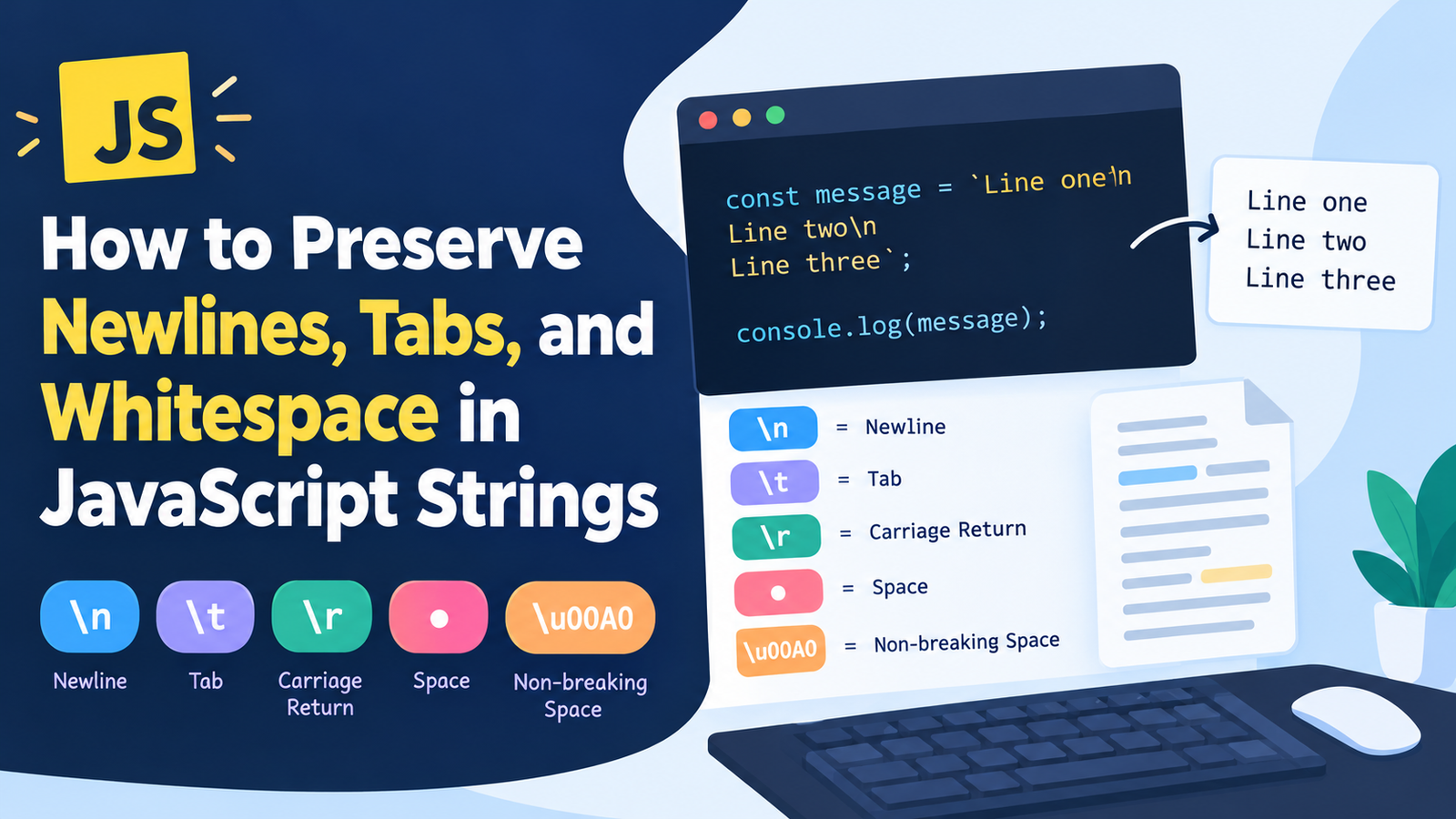
Whitespace characters include:
- Spaces: Isolate words or add space into text.
- Newlines: Text will be carried to a new line.
- Tabs: Set horizontal tabs, typically for indenting text.
- Carriage returns: Are included in some text formats to move to the start of a line.
- Other whitespace characters: Add other kinds of whitespace (e.g., non-breaking space, Unicode whitespace).
Let’s look at the following JavaScript string:
const message = "Hello\nWorld";
console.log(message);
The output is:
Hello
World
A sequence called a “newline” is written as \n. When the string is created through JavaScript, it sees it as a line break.
Now think about a string that has a tab:
const message = "Name:\tJohn";
console.log(message);
The result of this appears like this:
Name: JohnThe actual amount of separation will vary, depending on the context of the environment in which the text is displayed.
Keeping whitespace doesn’t equal keeping ALL the characters in all the situations. It is an indication that unwanted adjustments are not made when saving, handling, or viewing text.
Explain Whitespace Characters in JavaScript Strings
Note that before you can learn about preserving whitespaces, you should first understand the characters that represent whitespaces in JavaScript.
1. Newline Character (\n)
Newline (“\n”) is used to separate the lines of text.
const text = "First line\nSecond line";

console.log(text);
Output:
First line
Second line
The \n escape character is useful for producing the line feed character often used to break lines of JavaScript strings.
2. Tab Character (\t)
The tab character is used to insert a horizontal tab ( | )
const text = "Name:\tAlice";

console.log(text);
The tab separates the Name: and Alice. It’s visual width is dependent upon the display environment and tab settings.
3. Carriage Return (\r)
The carriage return (return) is used to indicate that you can return to the beginning of the line.
const text = "Hello\rWorld";
console.log(text);
Its activities are influenced by its surroundings. A carriage return also may place the cursor at the left end of the current line which may overwrite print on the screen.
Just cast the first word to the stepper motor holding a print block; it would be a bit simpler to use 1, 2, and 3.
Text files with a line ending normally consist of a carriage return (CR) followed by a line feed (LF).
const text = "First line\r\nSecond line";

console.log(text);
Both characters in the string remain. They will be displayed based on the output environment.
5. Ordinary Spaces
There may be spaces at the start, middle or end of a string.
const text = "   Hello World   ";

console.log(text);
There are 3 leading spaces as well as 3 trailing spaces in the string. But for some Tools and Formatting Methods, they might not remain or it might collapse visually.
6. Other Whitespace Characters
There are other characters supported by JavaScript, including vertical tabs, form feeds, and Unicode whitespace.
For example:
const text = "Hello\u00A0World";
console.log(text);
The escape sequence '\u00A0' is for a non-breaking space. It is used to visually separate words and not to be a place where words can break in many contexts of word rendering.
Once you know these characters, it will be easier to know why whitespace may change when processing text.
How to Preserve Newlines in JavaScript Strings
When dealing with data that is processed, converted or displayed improperly, newlines are often lost. JavaScript offers various ways to deal with and store whitespace.
Method 1: Create Several Lines with the ‘\n’ Escape Sequence:
The easiest way to get a newline in the java script string is to write '\n'.
const text = "Line one\nLine two\nLine three";

console.log(text);
Output:
Line one
Line two
Line three
The \n creates a line feed character for the string.
This approach will be helpful when making multiline messages, formatting output, creating text files, or preparing text for an API.
Method 2: Template Literals
This is method 2 of running apiPath.This is the 2nd Method to use of running apiPath.
Template literals is the type of strings that enable multiline strings to be written directly with backticks.
const text = `Line one
Line two
Line three`;

console.log(text);
Line breaks in the template are included in the string.
When writing longer text it will be particularly useful because you will not have to manually add the \n (new line) between each line.
Indentations within a template literal are also respected, though.
For example:
const text = `First line
    Second line
    Third line`;

console.log(text);
Lines 2 and 3 have four spaces at the beginning. Those spaces are intentional and must be removed; it shouldn’t be assumed that JavaScript will ignore them.
Method 3 – Keep Newlines When Reading Text
Avoid splitting and rejoining text when reading from a file, from a form or from an API.
For example:
const original = "First line\nSecond line\nThird line";

const preserved = original;

console.log(preserved === original); // true
If you set the string to another variable, that string’s whitespace does not change.
But this operation modifies the string:
const original = "First line\nSecond line";

const modified = original.replace(/\n/g, " ");

console.log(modified);
Output:
First line Second lineThe regular expression is used to replace all newlines with spaces. When choosing transformations, consider transformations that do not replace line breaks if lines of break are desired as is with a text.
Don’t forget also that the function split(“\n”) can split a string into an array of lines. This can be restored to the original text by combining it with the same separator, but improperly handling the array could change the text.
In JavaScript Strings, How To Preserve Tabs
Tabs are helpful for indentations, formatted text and data. These can be used by the \t escape sequence.
Using \t to Insert Tabs
const text = "Name:\tAlice\nAge:\t25";

console.log(text);
It can output text in the following format:
Name:   Alice
Age:    25
Depending on the environment, the number of visible spaces that each tab will insert is determined.
The string actually consists of tab characters, NOT multiple regular spaces.
Maintaining Existing Tab characters
Assigning or storing a string with tabs doesn’t convert them to spaces.
const original = "Name:\tAlice";
const copy = original;

console.log(copy === original); // true
Tab is still included in string.
A replacement surgery will change that though:
const original = "Name:\tAlice";

const modified = original.replace(/\t/g, " ");

console.log(modified);
The tab is converted to a regular, single space.
Don’t use this transform if the original tab can’t be kept as is.
Differentiate between tabs and spaces.
When displayed on screen, spaces and tabs appear the same—but remember that they are two distinct characters.
You can view their character codes:
const tab = "\t";
const space = " ";

console.log(tab.charCodeAt(0));   // 9
console.log(space.charCodeAt(0)); // 32
This difference really comes into play with source code, configuration files, tab separated data and when using text comparison tools.
Preserving Leading / Trailing Whitespace.
Leading whitespace is white space that really precedes the first visible character and trailing whitespace is white space that really follows the last visible character.
For example:
const text = " Hello World ";Spaces on both ends of string.
Such spaces are kept until an operation alters them in javascript. A common cause of accidental whitespace loss is the trim() method.
Don’t use trim() when Whitespace is Important
The trim() method to remove whitespaces from both sides of a string.
const original = "   Hello World   ";

console.log(original.trim());
Output:
Hello Worldspazio tra la prima e la seconda parola è cancellato.
If such spaces are significant, do not use trim() on the string.
For instance, whether you are comparing exact text, processing fixed width records, formatted source code, or preparing data for a particular parser, spaces may be important.
Know about trimStart() & trimEnd()
JavaScript also offers functions to remove white space from either or both end.
const text = "   Hello World   ";

console.log(text.trimStart());
console.log(text.trimEnd());
The former strips out the whitespace in front, and the latter one strips out the whitespace at the end.
Only use these methods when you want to remove the whitespaces.
Unexpected Bugs Caused by trim()
Consider a program that gets a text item with indentation that is significant:
const code = " const total = 10;";The following call to trim()-ed changes the start of the string:
const modified = code.trim();

console.log(modified);
These four spaces become before-play spaces.
Well, in a regular communication this might not be significant, but you may require this functionality when you need to retain the formatting of your source or if you need to compare strings exactly.
Preserving the Whitespace in Template Literals.
Multiline strings in JS are one of the easiest users experiences using template literals. They put backticks around words instead of single or double quotes.
Creating Multiline Text
const message = `Hello,
Welcome to our website.
Have a great day!`;

console.log(message);
The output string will have newlines between lines.
Thus, template literals can be scope of email messages, formatted messages, documentation, and creating multiline text.
Preserving Indentation
Consider this example:
const message = `
    First line
    Second line
    Third line
`;

console.log(message);
The string contains the following characters: A newline right after the start backtick, Spaces used for indentation before each line, A newline before the end backtick.
Those characters are included in the string even if they are not easily identifiable from the source code.
To start the string with label First Line, it may be necessary to move the starting backtick or manually delete unwanted characters.
Make sure you interpolate variables without losing whitespace.
The latter template literals can also contain expressions.
const name = "Alice";

const message = `Hello, ${name}!
Welcome back.`;

console.log(message);
The interpolation between two lines is done in such a way that it inserts the value of name although preserving the line break between the two lines.
The interpolated value will not be trimmed or normalized automatically.
For instance, if the name includes spaces at the beginning before the first letter and spaces at the end after the last letter of the name, they will be retained in the output string, unless you are adding them.
In JSON – How to preserve Whitespace
JSON is commonly utilized for data transmission among JavaScript based applications, servers, and APIs. When sending multiline text, it’s better to be familiar with the way whitespace is processed in JSON.
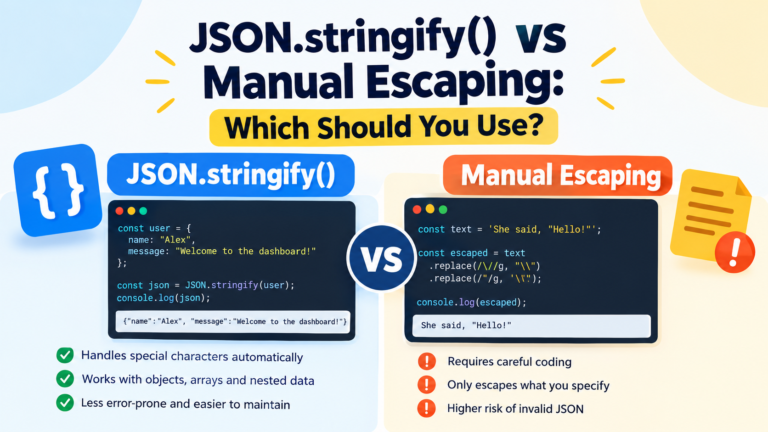
Serialize Strings using JSON.stringify()
Let’s take a look at the following string:
const text = "First line\nSecond line\tIndented";

const json = JSON.stringify(text);

console.log(json);
The JSON representation has escaped characters:
"First line\nSecond line\tIndented"Of course, the backslashes are required in order to make “new line” and “tab” representable within the JSON string. They are not an indication that original characters are replaced with regular textual characters in the input (source) JavaScript string.
The characters are restored when parsing the JSON string.
Use JSON.parse() Restore Whitespace
const original = "First line\nSecond line\tIndented";

const json = JSON.stringify(original);
const restored = JSON.parse(json);

console.log(restored === original); // true
The comparison returns true since after serialization and later parsing the content of the string is the same.
It is one of the reasons why one should rely on built-in JSON methods rather on doing the escaping by hand.
Avoid Double Escaping
Other possible causes include doublescape which can result in a literal backslash followed by a letter in the string for the control character.
For example:
const actualNewline = "First line\nSecond line";
const literalSequence = "First line\\nSecond line";

console.log(actualNewline === literalSequence); // false
The first string has an actual newline character. The second is composed of the characters \n.
If the first string is sent to the server using JSON.stringify(), the newline will be shown as \n in the JSON text. Excessive escaping will alter the data that is intended.
Always remember to differentiate actual versus written whitespace characters.
How to preserve whitespace when displaying text in HTML?
Although JavaScript may be able to maintain all the spaces properly, the browser might render the text differently.
Ordinary HTML text rendering collapses many contiguous spaces, and presumes that a line break is a white space instead of a line break.
For example:
const text = "First line\nSecond line";
document.querySelector("output").textContent = text;
The browser might also show the text on a single line, depending on the CSS property of the target element (the ordinary HTML element) which applies to whitespace.
We still have the new line contained in the string. The difference lies in the way it is displayed in the browser.
Apply the white-space: pre-wrap style to your CSS!
The easiest way is through the use of the white-space CSS property.
HTML:
<div id="output"></div>JavaScript:
const text = "First line\nSecond line\n    Indented line";

document.querySelector("output").textContent = text;
CSS:
output {
    white-space: pre-wrap;
}
A pre-wrap value maintains the whitespace and the line breaks, but still wraps long lines as needed.
This is great for user submitted messages, notes, multiline description and formatted text.
Knowing the difference between ‘pre’, ‘pre-wrap’ and ‘normal’
CSS white space property can control how white space is treated in rendering.
normal: spaces are collapsed in the normal way and generally line breaks are treated as regular space.pre: retains spaces and line breaks; generally will not break long lines.pre-wrap: spaces and line breaks are kept, but long lines are wrapped.pre-line: Similar topre, but allows collapses of multiple spaces and/or tabs.
For example:
.output {
    white-space: pre-wrap;
}
Select the value desired for the display. If spacing is crucial, then using pre-wrap is a good starting point.
Use textContent Instead of Injecting HTML
Relying on textContent is typically safer when displaying content that has come from a user, as we do not want to use innerHTML to assign possibly untrusted content.
const userText = "Hello\nWorld";

const output = document.querySelector("output");
output.textContent = userText;
This will appear in combination with white-space: pre-wrap, and it will not be parsed as HTML, but rather as text and display the line break.
This method allows more formatting to be maintained, without needlessly parsing the user input as markup.
In regular expressions, how to keep whitespaces without modifying.
Whitespace find, replace and verification in a JavaScript string is useful with regular expressions. However, there are some patterns that can accidentally remove or modify white spaces.
Understand \s Character Class
The white space character in JavaScript regular expression corresponds to the assertion [\r\n\t ].
For example:
const text = "Hello \n\t World";

console.log(text.replace(/\s/g, ""));
Output:
HelloWorldEach matched whitespace character is taken out.
Please don’t use this replacement if you want to retain the original formatting.
Don’t blindly replace multiple blanks:
One such trend is:
const text = "First  line\nSecond\tline";

const modified = text.replace(/\s+/g, " ");

console.log(modified);
Output:
First line Second lineThis operation removes all the whitespace that is consecutive to each pair of adjacent whitespaces except for a single ordinary space. It also takes the place of the new line character and the tab.
This can be good for normalizing search queries, but is not right when keeping line breaks and indentations constant is required.
Replace Just the Characters You Want to Change.
When replacing ordinary spaces without disturbing newlines or tabs, use a pattern that only matches ordinary spaces.
const text = "First  line\nSecond\tline";

const modified = text.replace(/ +/g, " ");

console.log(modified);
This compresses runs of blank characters, but not the newline and tab.
When whitespace matters, the general guideline is to be as specific as possible with your regular expression.
Preserving Whitespaces in Reading/Writing a file
Whitespace preservation is also important when dealing with text files in JavaScript, for example in Node.js applications or browser-based apps.
Don’t forget to freeze the String before writing
In Node.js for example:
const fs = require("node:fs");

const text = "First line\nSecond line\n\tIndented line";

fs.writeFileSync("output.txt", text, "utf8");
The line and Tab characters in the string are outputted to the output string as the corresponding characters.
All the same, the line-ending convention of a file may be significant when you exchange files between operating systems.
Add Read File Without Unnecessary Transformations to blocker.
const fs = require("node:fs");

const text = fs.readFileSync("output.txt", "utf8");

console.log(text);
Reading the file as UTF-8 will give you the text content of the file as a JavaScript string.
If whitespace, or the presence of ‘\n’ characters, or the lack of such characters is critical to the format of the file, do not remove them by calling ‘trim()’, or collapsing them.
Also be aware that there are encoding decisions and line-ending conventions for reading and writing to files. It may not be enough in the case of all possible files to simply decode and re-encode text if byte-for-byte preservation is desired. If this is the case, then work with a buffer rather than treating the content as a text.
Leading Programmers Avoid These Pitfalls When Preserving Whitespace in JavaScript
There are a number of errors that cause whitespace to disappear, or to appear in unexpected ways.
1. Using trim() Automatically
Each incoming string may contain trailing and leading whitespace with no meanings and loss because the trim() operation is called on each of them.
To minimize canopy removal, apply to a specific spot and only cut to that spot.
2. Confusing \n with \\n
These are various types of string content.
const first = "\n";
const second = "\\n";

console.log(first.length);  // 1
console.log(second.length); // 2
The first string has one ‘new line’ character. The second one has a backslash and an n.
Solution: Figure out if there is a need for an actual new line or a literal escape sequence.
3. Using replace(/\s+/g, " ")
This pattern replaces all whitespace characters (line breaks and tabs) with spaces.
Solution: If only changing a few of the characters use a narrower regular expression.
7. Assuming HTML Displays Whitespace Exactly
Note that a JavaScript string can contain newlines even though it may not be displayed as newlines in the browser.
Solution: use a space value that is appropriate to your situation, e.g. white-space: pre-wrap.
Manually Escaping JSON Strings
If you quote, backslash or replace whitespaces with these characters manually, you could end up with invalid JSON or altered text content.
The solution is to use JSON.stringify() to turn JavaScript values into strings and inverse thereto: the JSON.parse() function to turn valid JSON strings into JavaScript values.
Tabs always have the same width.
Tab is not necessarily four or 8 ordinary spaces.
Solution: Keep the tab character alone when exact tab data needs to be maintained, and set up the display environment when it is necessary to present the data within a certain display width.
These are best practices for maintaining whitespace in JS.
To make string handling behaviour more predictable, follow these practices.
- When automatic line breaks are required, use a backslash
('\n') - Use tab character
\twhen appropriate. - Use literals for easy readability of multi-line strings.
- When the formatting in the original text should not be altered, do not use trim() and whitespace normalization.
- Reliably serialize and de-serialize JSON.
- For multi-line text in HTML, use white-space: pre-wrap for CSS.
- [string].textContent – display untrusted input as text not HTML.
- Engage precise regular expressions for modifying only the whitespace characters you’re after.
- Test strings that begin and end with spaces, tabs and multiple line-endings.
- Decide if character-level preservation or byte-for-byte preservation of the file is necessary for your application.
This will vary from where the string is coming from and how it is going to be used. In JavaScript a correct string might require further formatting instructions when it is interpreten in an other system or in a browser.
Key Takeaways
- Whitespace is preserved in strings, except that it is not in JavaScript. Newlines, spaces and tabs are included in the string unless operations are used to replace them.
- insert a line at end of the line with
\n. This can be helpful for manually constructing a multi-line string. - Use
\tto insert a tab. Keep in mind that how wide it looks will vary with the display. - Template literals are also multiline. But indentation and line ends within the backticks are also kept.
- Trimming and replacement that is not necessary should be avoided. Whitespace is one of the factors that can be altered by techniques such as trim and patterns like /\s+/g.
- The content of strings is preserved by JSON methods; avoid manually escaping strings with JSON.stringify() and JSON.parse().
- HTML rendering and string storage are two different things. To render line breaks and spaces as is, use CSS ‘white space: pre-wrap’.
- For simple text, use
textContent. Helps to prevent user-provided content from being interpreted as HTML. - Select the proper preservation approach. There are different requirements on displaying formatted text and preserving a file byte for byte.
Frequently Asked Questions (FAQs)
1. How to use newlines in a javascript string?
To add a New Line make use of the escape sequence with its value of \n or use template literals to write multi-line text! If the line breaks cannot be altered, then do not replace the newline characters or normalize the whitespaces in the line.
2. In what way do you save Tab in Javascript?
To add a tab character use \t. NEVER use ordinary spaces in place of tabs in a string. Checking its difference would be a good way for you to know that a tab is encoded with 9, and an ordinary space with 32.
3. Will javaScript trim the whitespace in a string automatically?
No, the default behaviour of javascript is to store whitespace in strings. Whitespaces are considered constant and only adjusted by the operation, library, parser or display process that adjusts or processes it differently.
4. When you see a JavaScript string in HTML, why can’t you see the newlines?
HTML browsers typically ignore and cut out extra spaces from regular HTML elements. Even if it doesn’t wrap around to create a line break, the newline still exists in the string. Set white-space property to pre-wrap to retain line breaks and spaces.
5. In JavaScript, what is the difference between ‘\n’ and ‘\n’?
The sequence \n' is for a real line break. The sequence \nis not interpreted asnewline`, so it is treated as a literal backslash followed by an n. The first will cause a linebreak to be generated when displaying the message, if appropriate, and the second will show the escape notation itself.
6. Will using JSON.stringify() retain newlines and tabs?
Yes, newlines and tabs are represented using the escape sequences in the serialized JSON text by JSON.stringify(). Those characters will reappear in strings created by parsing in to a JSON object using JSON.parse().
8. In JavaScript, how can I keep multiple white-spaces?
Don’t call trim() or replace sequences of whitespace unless you’re planning to change them. For presenting this string within HTML, care should be taken to ensure appropriate white spaces with consecutive spaces appearing as intended – for example with white-space: pre-wrap in the CSS styling of the string in the HTML.
8. Does a template literal also keep linebreaks / indentations?
Yes. Template literals keep the spaces and line breaks made within their backticks. Indentation in your source code may be included in the resulting string.
9. What is the best way to retain the line breaks of user input in a display?
Pass in the data to an element using textContent; then apply the white-space: pre-wrap to the element. This helps to maintain the line breaks of a text while rendering without HTML interpretation.
10. How could you be sure to make whitespace safer when converting a string to JSON?
serialize the string with JSON.stringify(), and later on recover the string with the JSON.parse() function. Don’t escape manually or special character escaping can modify the data or generate flawed JSON.
11. Do regular expressions take out newlines and tabs by accident?
Yes. For instance, /\s+/g matches sequences of whitespace characters — newlines, tabs and so on. This replacement of matches with spaces could result in the loss of the original formatting. If you must retain specific whitespace characters, use a more specific pattern.
13. What is the solution to preserve the space in a text file read into node.js?
Use an appropriate encoding (e.g., UTF-8) when reading this file and do not transform the file to remove or replace whitespace. Use buffers for byte-for-byte preservation, and don’t unnecessarily decode and re-encode.
Final Thoughts
Retaining newlines, tabs and whitespace in javaScript strings is a simple matter of knowing how strings are represented, and which operations preserve that representation.
Properly use escape sequences and template literals to create formatted texts and note that strings might not appear as they are in HTML due to the rules used in their rendering. Use built-in serialization methods for JSON data – don’t escape characters by hand.
These practices allow you to carry over text formatting to a greater level of confidence in JavaScript applications, browsers, APIs, and text-processing pipelines.Strings in JavaScript can be composed of characters, not just alphanumeric. It can also contain newlines, tabs and spaces and other whitespace characters which can impact the appearance and handling of text. In copying texts, however, processing user’s input, or displaying text on a web page, keeping that whitespace can turn out to be surprisingly hard.
This means that if a string has multiple lines, it could be incorrectly flattened to a single line. Tabs can be translated to spaces, spaces may be omitted or additional white space may be collapsed during formatting of the data.
By knowing how to retain newlines, tabs, and whitespace in js strings, you can prevent the issues and work with text in a more dependable way.
In this book, you’ll discover the ways JavaScript represents whitespace, how to select and keep line breaks and tabs, template literals, and how to deal with whitespace in JSON, HTML, and regular expressions. Some of the common pitfalls will also be explained as well as some examples you can practice with for your project.
What is the Purpose of Preserving Whitespace in JavaScript?
Whitespace Preservation: Keeping the space, tab, line break and other whitespaces in a string just the way they want them.
Whitespace characters include:
- Spaces: Isolate words or add space into text.
- Newlines: Text will be carried to a new line.
- Tabs: Set horizontal tabs, typically for indenting text.
- Carriage returns: Are included in some text formats to move to the start of a line.
- Other whitespace characters: Add other kinds of whitespace (e.g., non-breaking space, Unicode whitespace).
Let’s look at the following JavaScript string:
const message = "Hello\nWorld";
console.log(message);
The output is:
Hello
World
A sequence called a “newline” is written as \n. When the string is created through JavaScript, it sees it as a line break.
Now think about a string that has a tab:
const message = "Name:\tJohn";
console.log(message);
The result of this appears like this:
Name: JohnThe actual amount of separation will vary, depending on the context of the environment in which the text is displayed.
Keeping whitespace doesn’t equal keeping ALL the characters in all the situations. It is an indication that unwanted adjustments are not made when saving, handling, or viewing text.
Explain Whitespace Characters in JavaScript Strings
Note that before you can learn about preserving whitespaces, you should first understand the characters that represent whitespaces in JavaScript.
1. Newline Character (\n)
Newline (“\n”) is used to separate the lines of text.
const text = "First line\nSecond line";

console.log(text);
Output:
First line
Second line
The \n escape character is useful for producing the line feed character often used to break lines of JavaScript strings.
2. Tab Character (\t)
The tab character is used to insert a horizontal tab ( | )
const text = "Name:\tAlice";

console.log(text);
The tab separates the Name: and Alice. It’s visual width is dependent upon the display environment and tab settings.
3. Carriage Return (\r)
The carriage return (return) is used to indicate that you can return to the beginning of the line.
const text = "Hello\rWorld";
console.log(text);
Its activities are influenced by its surroundings. A carriage return also may place the cursor at the left end of the current line which may overwrite print on the screen.
Just cast the first word to the stepper motor holding a print block; it would be a bit simpler to use 1, 2, and 3.
Text files with a line ending normally consist of a carriage return (CR) followed by a line feed (LF).
const text = "First line\r\nSecond line";

console.log(text);
Both characters in the string remain. They will be displayed based on the output environment.
5. Ordinary Spaces
There may be spaces at the start, middle or end of a string.
const text = "   Hello World   ";

console.log(text);
There are 3 leading spaces as well as 3 trailing spaces in the string. But for some Tools and Formatting Methods, they might not remain or it might collapse visually.
6. Other Whitespace Characters
There are other characters supported by JavaScript, including vertical tabs, form feeds, and Unicode whitespace.
For example:
const text = "Hello\u00A0World";
console.log(text);
The escape sequence '\u00A0' is for a non-breaking space. It is used to visually separate words and not to be a place where words can break in many contexts of word rendering.
Once you know these characters, it will be easier to know why whitespace may change when processing text.
How to Preserve Newlines in JavaScript Strings
When dealing with data that is processed, converted or displayed improperly, newlines are often lost. JavaScript offers various ways to deal with and store whitespace.
Method 1: Create Several Lines with the ‘\n’ Escape Sequence:
The easiest way to get a newline in the java script string is to write '\n'.
const text = "Line one\nLine two\nLine three";

console.log(text);
Output:
Line one
Line two
Line three
The \n creates a line feed character for the string.
This approach will be helpful when making multiline messages, formatting output, creating text files, or preparing text for an API.
Method 2: Template Literals
This is method 2 of running apiPath.This is the 2nd Method to use of running apiPath.
Template literals is the type of strings that enable multiline strings to be written directly with backticks.
const text = `Line one
Line two
Line three`;

console.log(text);
Line breaks in the template are included in the string.
When writing longer text it will be particularly useful because you will not have to manually add the \n (new line) between each line.
Indentations within a template literal are also respected, though.
For example:
const text = `First line
    Second line
    Third line`;

console.log(text);
Lines 2 and 3 have four spaces at the beginning. Those spaces are intentional and must be removed; it shouldn’t be assumed that JavaScript will ignore them.
Method 3 – Keep Newlines When Reading Text
Avoid splitting and rejoining text when reading from a file, from a form or from an API.
For example:
const original = "First line\nSecond line\nThird line";

const preserved = original;

console.log(preserved === original); // true
If you set the string to another variable, that string’s whitespace does not change.
But this operation modifies the string:
const original = "First line\nSecond line";

const modified = original.replace(/\n/g, " ");

console.log(modified);
Output:
First line Second lineThe regular expression is used to replace all newlines with spaces. When choosing transformations, consider transformations that do not replace line breaks if lines of break are desired as is with a text.
Don’t forget also that the function split(“\n”) can split a string into an array of lines. This can be restored to the original text by combining it with the same separator, but improperly handling the array could change the text.
In JavaScript Strings, How To Preserve Tabs
Tabs are helpful for indentations, formatted text and data. These can be used by the \t escape sequence.
Using \t to Insert Tabs
const text = "Name:\tAlice\nAge:\t25";

console.log(text);
It can output text in the following format:
Name:   Alice
Age:    25
Depending on the environment, the number of visible spaces that each tab will insert is determined.
The string actually consists of tab characters, NOT multiple regular spaces.
Maintaining Existing Tab characters
Assigning or storing a string with tabs doesn’t convert them to spaces.
const original = "Name:\tAlice";
const copy = original;

console.log(copy === original); // true
Tab is still included in string.
A replacement surgery will change that though:
const original = "Name:\tAlice";

const modified = original.replace(/\t/g, " ");

console.log(modified);
The tab is converted to a regular, single space.
Don’t use this transform if the original tab can’t be kept as is.
Differentiate between tabs and spaces.
When displayed on screen, spaces and tabs appear the same—but remember that they are two distinct characters.
You can view their character codes:
const tab = "\t";
const space = " ";

console.log(tab.charCodeAt(0));   // 9
console.log(space.charCodeAt(0)); // 32
This difference really comes into play with source code, configuration files, tab separated data and when using text comparison tools.
Preserving Leading / Trailing Whitespace.
Leading whitespace is white space that really precedes the first visible character and trailing whitespace is white space that really follows the last visible character.
For example:
const text = " Hello World ";Spaces on both ends of string.
Such spaces are kept until an operation alters them in javascript. A common cause of accidental whitespace loss is the trim() method.
Don’t use trim() when Whitespace is Important
The trim() method to remove whitespaces from both sides of a string.
const original = "   Hello World   ";

console.log(original.trim());
Output:
Hello Worldspazio tra la prima e la seconda parola è cancellato.
If such spaces are significant, do not use trim() on the string.
For instance, whether you are comparing exact text, processing fixed width records, formatted source code, or preparing data for a particular parser, spaces may be important.
Know about trimStart() & trimEnd()
JavaScript also offers functions to remove white space from either or both end.
const text = "   Hello World   ";

console.log(text.trimStart());
console.log(text.trimEnd());
The former strips out the whitespace in front, and the latter one strips out the whitespace at the end.
Only use these methods when you want to remove the whitespaces.
Unexpected Bugs Caused by trim()
Consider a program that gets a text item with indentation that is significant:
const code = " const total = 10;";The following call to trim()-ed changes the start of the string:
const modified = code.trim();

console.log(modified);
These four spaces become before-play spaces.
Well, in a regular communication this might not be significant, but you may require this functionality when you need to retain the formatting of your source or if you need to compare strings exactly.
Preserving the Whitespace in Template Literals.
Multiline strings in JS are one of the easiest users experiences using template literals. They put backticks around words instead of single or double quotes.
Creating Multiline Text
const message = `Hello,
Welcome to our website.
Have a great day!`;

console.log(message);
The output string will have newlines between lines.
Thus, template literals can be scope of email messages, formatted messages, documentation, and creating multiline text.
Preserving Indentation
Consider this example:
const message = `
    First line
    Second line
    Third line
`;

console.log(message);
The string contains the following characters: A newline right after the start backtick, Spaces used for indentation before each line, A newline before the end backtick.
Those characters are included in the string even if they are not easily identifiable from the source code.
To start the string with label First Line, it may be necessary to move the starting backtick or manually delete unwanted characters.
Make sure you interpolate variables without losing whitespace.
The latter template literals can also contain expressions.
const name = "Alice";

const message = `Hello, ${name}!
Welcome back.`;

console.log(message);
The interpolation between two lines is done in such a way that it inserts the value of name although preserving the line break between the two lines.
The interpolated value will not be trimmed or normalized automatically.
For instance, if the name includes spaces at the beginning before the first letter and spaces at the end after the last letter of the name, they will be retained in the output string, unless you are adding them.
In JSON – How to preserve Whitespace
JSON is commonly utilized for data transmission among JavaScript based applications, servers, and APIs. When sending multiline text, it’s better to be familiar with the way whitespace is processed in JSON.
Serialize Strings using JSON.stringify()
Let’s take a look at the following string:
const text = "First line\nSecond line\tIndented";

const json = JSON.stringify(text);

console.log(json);
The JSON representation has escaped characters:
"First line\nSecond line\tIndented"Of course, the backslashes are required in order to make “new line” and “tab” representable within the JSON string. They are not an indication that original characters are replaced with regular textual characters in the input (source) JavaScript string.
The characters are restored when parsing the JSON string.
Use JSON.parse() Restore Whitespace
const original = "First line\nSecond line\tIndented";

const json = JSON.stringify(original);
const restored = JSON.parse(json);

console.log(restored === original); // true
The comparison returns true since after serialization and later parsing the content of the string is the same.
It is one of the reasons why one should rely on built-in JSON methods rather on doing the escaping by hand.
Avoid Double Escaping
Other possible causes include doublescape which can result in a literal backslash followed by a letter in the string for the control character.
For example:
const actualNewline = "First line\nSecond line";
const literalSequence = "First line\\nSecond line";

console.log(actualNewline === literalSequence); // false
The first string has an actual newline character. The second is composed of the characters \n.
If the first string is sent to the server using JSON.stringify(), the newline will be shown as \n in the JSON text. Excessive escaping will alter the data that is intended.
Always remember to differentiate actual versus written whitespace characters.
How to preserve whitespace when displaying text in HTML?
Although JavaScript may be able to maintain all the spaces properly, the browser might render the text differently.
Ordinary HTML text rendering collapses many contiguous spaces, and presumes that a line break is a white space instead of a line break.
For example:
const text = "First line\nSecond line";
document.querySelector("output").textContent = text;
The browser might also show the text on a single line, depending on the CSS property of the target element (the ordinary HTML element) which applies to whitespace.
We still have the new line contained in the string. The difference lies in the way it is displayed in the browser.
Apply the white-space: pre-wrap style to your CSS!
The easiest way is through the use of the white-space CSS property.
HTML:
<div id="output"></div>JavaScript:
const text = "First line\nSecond line\n    Indented line";

document.querySelector("output").textContent = text;
CSS:
output {
    white-space: pre-wrap;
}
A pre-wrap value maintains the whitespace and the line breaks, but still wraps long lines as needed.
This is great for user submitted messages, notes, multiline description and formatted text.
Knowing the difference between ‘pre’, ‘pre-wrap’ and ‘normal’
CSS white space property can control how white space is treated in rendering.
normal: spaces are collapsed in the normal way and generally line breaks are treated as regular space.pre: retains spaces and line breaks; generally will not break long lines.pre-wrap: spaces and line breaks are kept, but long lines are wrapped.pre-line: Similar topre, but allows collapses of multiple spaces and/or tabs.
For example:
.output {
    white-space: pre-wrap;
}
Select the value desired for the display. If spacing is crucial, then using pre-wrap is a good starting point.
Use textContent Instead of Injecting HTML
Relying on textContent is typically safer when displaying content that has come from a user, as we do not want to use innerHTML to assign possibly untrusted content.
const userText = "Hello\nWorld";

const output = document.querySelector("output");
output.textContent = userText;
This will appear in combination with white-space: pre-wrap, and it will not be parsed as HTML, but rather as text and display the line break.
This method allows more formatting to be maintained, without needlessly parsing the user input as markup.
In regular expressions, how to keep whitespaces without modifying.
Whitespace find, replace and verification in a JavaScript string is useful with regular expressions. However, there are some patterns that can accidentally remove or modify white spaces.
Understand \s Character Class
The white space character in JavaScript regular expression corresponds to the assertion [\r\n\t ].
For example:
const text = "Hello \n\t World";

console.log(text.replace(/\s/g, ""));
Output:
HelloWorldEach matched whitespace character is taken out.
Please don’t use this replacement if you want to retain the original formatting.
Don’t blindly replace multiple blanks:
One such trend is:
const text = "First  line\nSecond\tline";

const modified = text.replace(/\s+/g, " ");

console.log(modified);
Output:
First line Second lineThis operation removes all the whitespace that is consecutive to each pair of adjacent whitespaces except for a single ordinary space. It also takes the place of the new line character and the tab.
This can be good for normalizing search queries, but is not right when keeping line breaks and indentations constant is required.
Replace Just the Characters You Want to Change.
When replacing ordinary spaces without disturbing newlines or tabs, use a pattern that only matches ordinary spaces.
const text = "First  line\nSecond\tline";

const modified = text.replace(/ +/g, " ");

console.log(modified);
This compresses runs of blank characters, but not the newline and tab.
When whitespace matters, the general guideline is to be as specific as possible with your regular expression.
Preserving Whitespaces in Reading/Writing a file
Whitespace preservation is also important when dealing with text files in JavaScript, for example in Node.js applications or browser-based apps.
Don’t forget to freeze the String before writing
In Node.js for example:
const fs = require("node:fs");

const text = "First line\nSecond line\n\tIndented line";

fs.writeFileSync("output.txt", text, "utf8");
The line and Tab characters in the string are outputted to the output string as the corresponding characters.
All the same, the line-ending convention of a file may be significant when you exchange files between operating systems.
Add Read File Without Unnecessary Transformations to blocker.
const fs = require("node:fs");

const text = fs.readFileSync("output.txt", "utf8");

console.log(text);
Reading the file as UTF-8 will give you the text content of the file as a JavaScript string.
If whitespace, or the presence of ‘\n’ characters, or the lack of such characters is critical to the format of the file, do not remove them by calling ‘trim()’, or collapsing them.
Also be aware that there are encoding decisions and line-ending conventions for reading and writing to files. It may not be enough in the case of all possible files to simply decode and re-encode text if byte-for-byte preservation is desired. If this is the case, then work with a buffer rather than treating the content as a text.
Leading Programmers Avoid These Pitfalls When Preserving Whitespace in JavaScript
There are a number of errors that cause whitespace to disappear, or to appear in unexpected ways.
1. Using trim() Automatically
Each incoming string may contain trailing and leading whitespace with no meanings and loss because the trim() operation is called on each of them.
To minimize canopy removal, apply to a specific spot and only cut to that spot.
2. Confusing \n with \\n
These are various types of string content.
const first = "\n";
const second = "\\n";

console.log(first.length);  // 1
console.log(second.length); // 2
The first string has one ‘new line’ character. The second one has a backslash and an n.
Solution: Figure out if there is a need for an actual new line or a literal escape sequence.
3. Using replace(/\s+/g, " ")
This pattern replaces all whitespace characters (line breaks and tabs) with spaces.
Solution: If only changing a few of the characters use a narrower regular expression.
7. Assuming HTML Displays Whitespace Exactly
Note that a JavaScript string can contain newlines even though it may not be displayed as newlines in the browser.
Solution: use a space value that is appropriate to your situation, e.g. white-space: pre-wrap.
Manually Escaping JSON Strings
If you quote, backslash or replace whitespaces with these characters manually, you could end up with invalid JSON or altered text content.
The solution is to use JSON.stringify() to turn JavaScript values into strings and inverse thereto: the JSON.parse() function to turn valid JSON strings into JavaScript values.
Tabs always have the same width.
Tab is not necessarily four or 8 ordinary spaces.
Solution: Keep the tab character alone when exact tab data needs to be maintained, and set up the display environment when it is necessary to present the data within a certain display width.
These are best practices for maintaining whitespace in JS.
To make string handling behaviour more predictable, follow these practices.
- When automatic line breaks are required, use a backslash
('\n') - Use tab character
\twhen appropriate. - Use literals for easy readability of multi-line strings.
- When the formatting in the original text should not be altered, do not use trim() and whitespace normalization.
- Reliably serialize and de-serialize JSON.
- For multi-line text in HTML, use white-space: pre-wrap for CSS.
- [string].textContent – display untrusted input as text not HTML.
- Engage precise regular expressions for modifying only the whitespace characters you’re after.
- Test strings that begin and end with spaces, tabs and multiple line-endings.
- Decide if character-level preservation or byte-for-byte preservation of the file is necessary for your application.
This will vary from where the string is coming from and how it is going to be used. In JavaScript a correct string might require further formatting instructions when it is interpreten in an other system or in a browser.
Key Takeaways
- Whitespace is preserved in strings, except that it is not in JavaScript. Newlines, spaces and tabs are included in the string unless operations are used to replace them.
- insert a line at end of the line with
\n. This can be helpful for manually constructing a multi-line string. - Use
\tto insert a tab. Keep in mind that how wide it looks will vary with the display. - Template literals are also multiline. But indentation and line ends within the backticks are also kept.
- Trimming and replacement that is not necessary should be avoided. Whitespace is one of the factors that can be altered by techniques such as trim and patterns like /\s+/g.
- The content of strings is preserved by JSON methods; avoid manually escaping strings with JSON.stringify() and JSON.parse().
- HTML rendering and string storage are two different things. To render line breaks and spaces as is, use CSS ‘white space: pre-wrap’.
- For simple text, use
textContent. Helps to prevent user-provided content from being interpreted as HTML. - Select the proper preservation approach. There are different requirements on displaying formatted text and preserving a file byte for byte.
Frequently Asked Questions (FAQs)
1. How to use newlines in a javascript string?
To add a New Line make use of the escape sequence with its value of \n or use template literals to write multi-line text! If the line breaks cannot be altered, then do not replace the newline characters or normalize the whitespaces in the line.
2. In what way do you save Tab in Javascript?
To add a tab character use \t. NEVER use ordinary spaces in place of tabs in a string. Checking its difference would be a good way for you to know that a tab is encoded with 9, and an ordinary space with 32.
3. Will javaScript trim the whitespace in a string automatically?
No, the default behaviour of javascript is to store whitespace in strings. Whitespaces are considered constant and only adjusted by the operation, library, parser or display process that adjusts or processes it differently.
4. When you see a JavaScript string in HTML, why can’t you see the newlines?
HTML browsers typically ignore and cut out extra spaces from regular HTML elements. Even if it doesn’t wrap around to create a line break, the newline still exists in the string. Set white-space property to pre-wrap to retain line breaks and spaces.
5. In JavaScript, what is the difference between ‘\n’ and ‘\n’?
The sequence \n' is for a real line break. The sequence \nis not interpreted asnewline`, so it is treated as a literal backslash followed by an n. The first will cause a linebreak to be generated when displaying the message, if appropriate, and the second will show the escape notation itself.
6. Will using JSON.stringify() retain newlines and tabs?
Yes, newlines and tabs are represented using the escape sequences in the serialized JSON text by JSON.stringify(). Those characters will reappear in strings created by parsing in to a JSON object using JSON.parse().
8. In JavaScript, how can I keep multiple white-spaces?
Don’t call trim() or replace sequences of whitespace unless you’re planning to change them. For presenting this string within HTML, care should be taken to ensure appropriate white spaces with consecutive spaces appearing as intended – for example with white-space: pre-wrap in the CSS styling of the string in the HTML.
8. Does a template literal also keep linebreaks / indentations?
Yes. Template literals keep the spaces and line breaks made within their backticks. Indentation in your source code may be included in the resulting string.
9. What is the best way to retain the line breaks of user input in a display?
Pass in the data to an element using textContent; then apply the white-space: pre-wrap to the element. This helps to maintain the line breaks of a text while rendering without HTML interpretation.
10. How could you be sure to make whitespace safer when converting a string to JSON?
serialize the string with JSON.stringify(), and later on recover the string with the JSON.parse() function. Don’t escape manually or special character escaping can modify the data or generate flawed JSON.
11. Do regular expressions take out newlines and tabs by accident?
Yes. For instance, /\s+/g matches sequences of whitespace characters — newlines, tabs and so on. This replacement of matches with spaces could result in the loss of the original formatting. If you must retain specific whitespace characters, use a more specific pattern.
13. What is the solution to preserve the space in a text file read into node.js?
Use an appropriate encoding (e.g., UTF-8) when reading this file and do not transform the file to remove or replace whitespace. Use buffers for byte-for-byte preservation, and don’t unnecessarily decode and re-encode.
Final Thoughts
Retaining newlines, tabs and whitespace in javaScript strings is a simple matter of knowing how strings are represented, and which operations preserve that representation.
Properly use escape sequences and template literals to create formatted texts and note that strings might not appear as they are in HTML due to the rules used in their rendering. Use built-in serialization methods for JSON data – don’t escape characters by hand.
These practices allow you to carry over text formatting to a greater level of confidence in JavaScript applications, browsers, APIs, and text-processing pipelines.